
# Smart Accounting
# I. Feature Overview
On HarmonyOS, Smart Accounting can trigger screenshot recognition through the floating capsule, the system Control Center, or Screenshot Recognition. It is suitable for quickly generating accounting records from a bill details page or payment success page.
# II. How to Enable Smart Accounting
1. Enable Feature and Permissions Enable the Floating Capsule switch and grant screenshot permission. 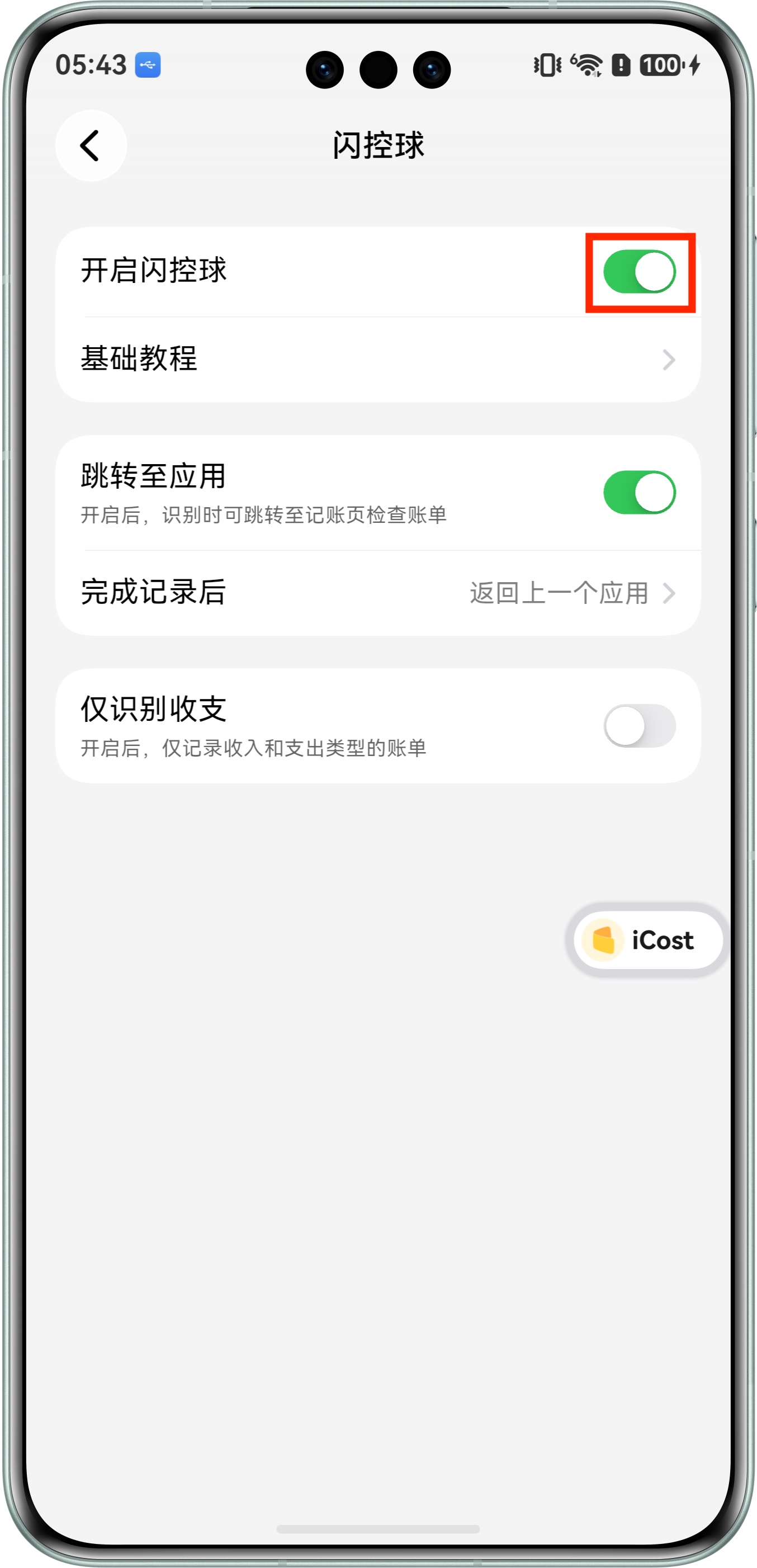
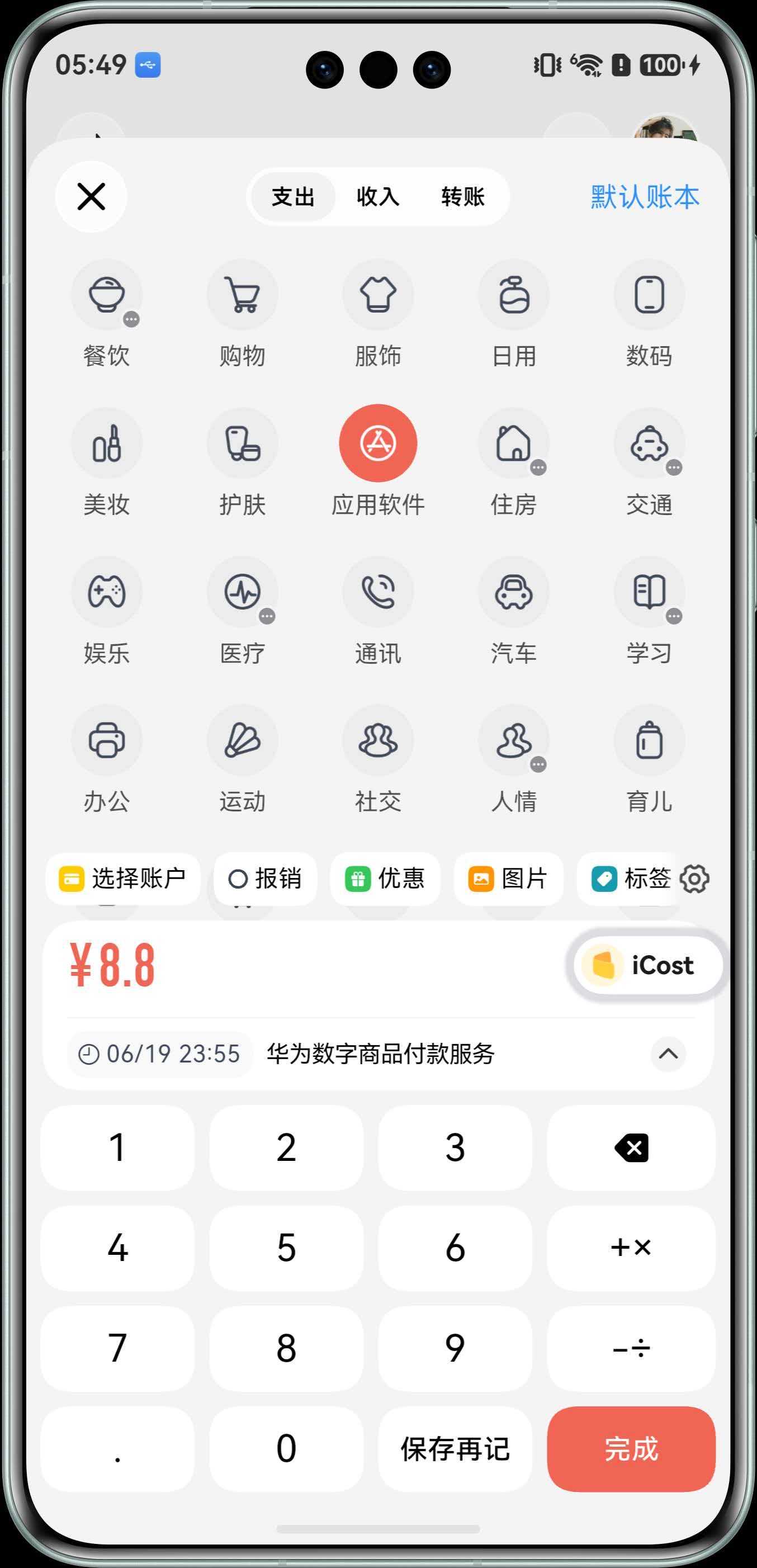
2. Recognize the Bill Open the bill details page, double tap the Floating Capsule, and recognize the bill. 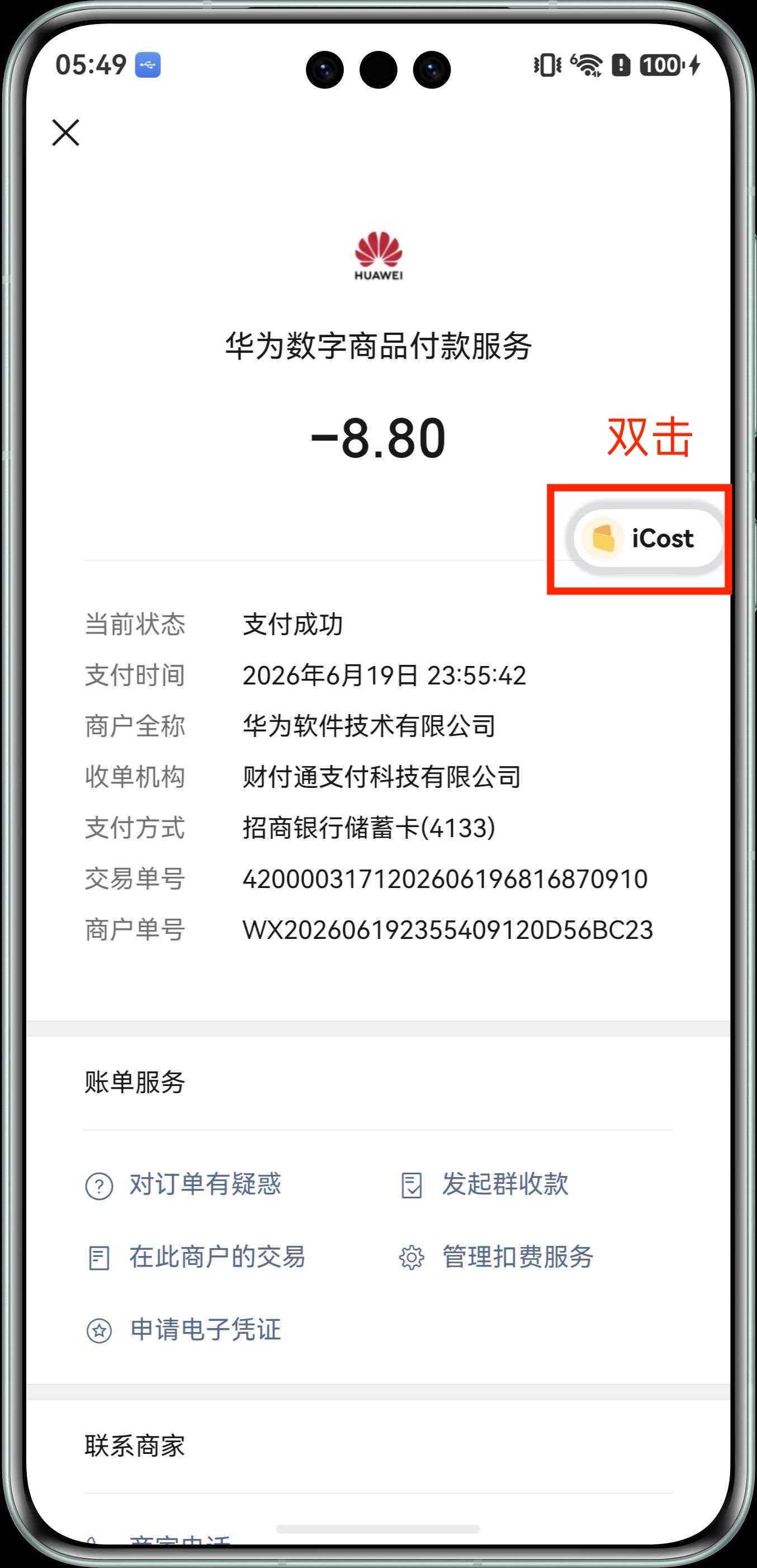
1. Enable Feature and Permissions Enable the Control Center tile and grant screenshot permission. 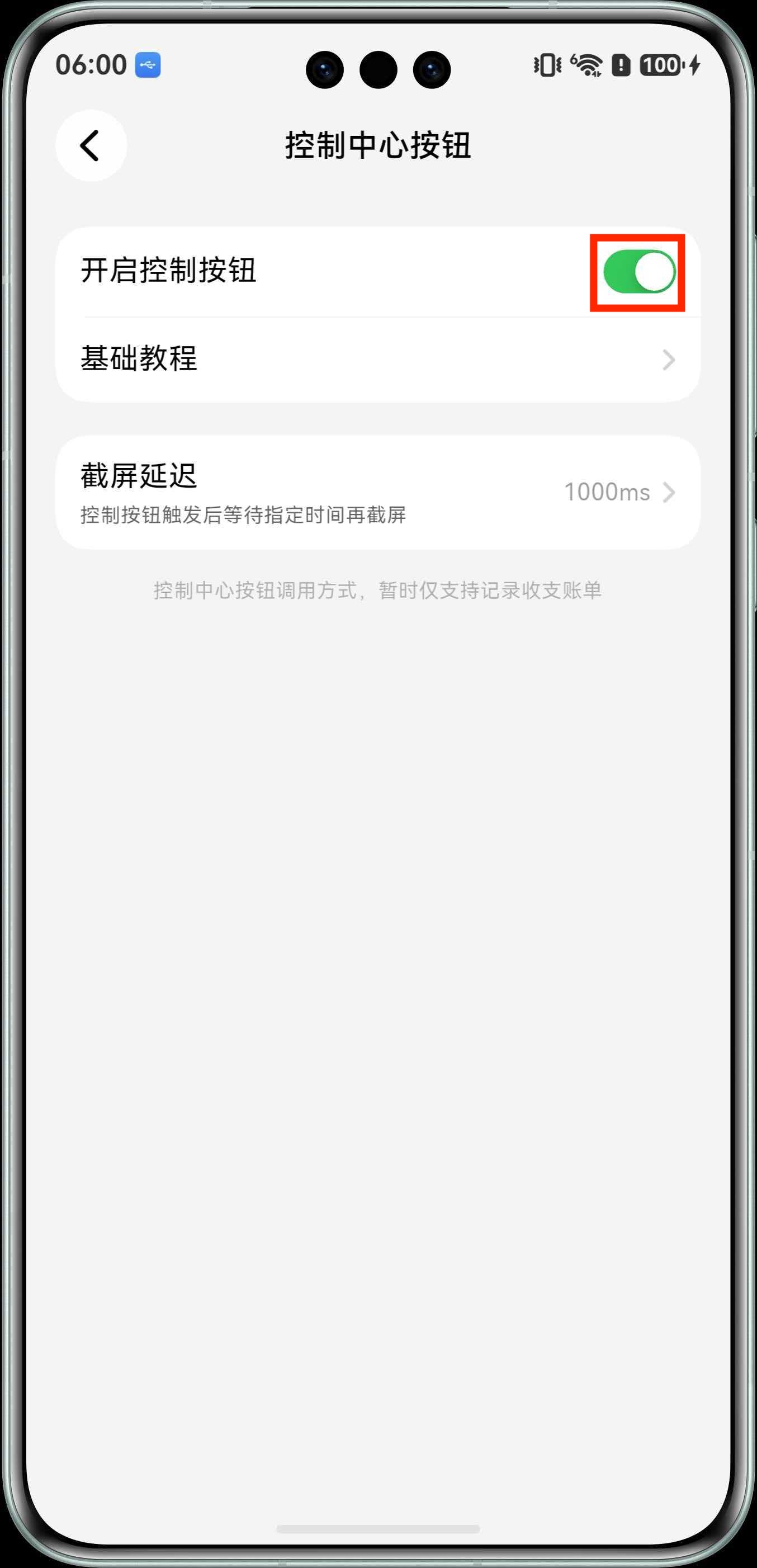
2. Create a Scene in the Smart Life App Follow the screenshots to create and save the scene. 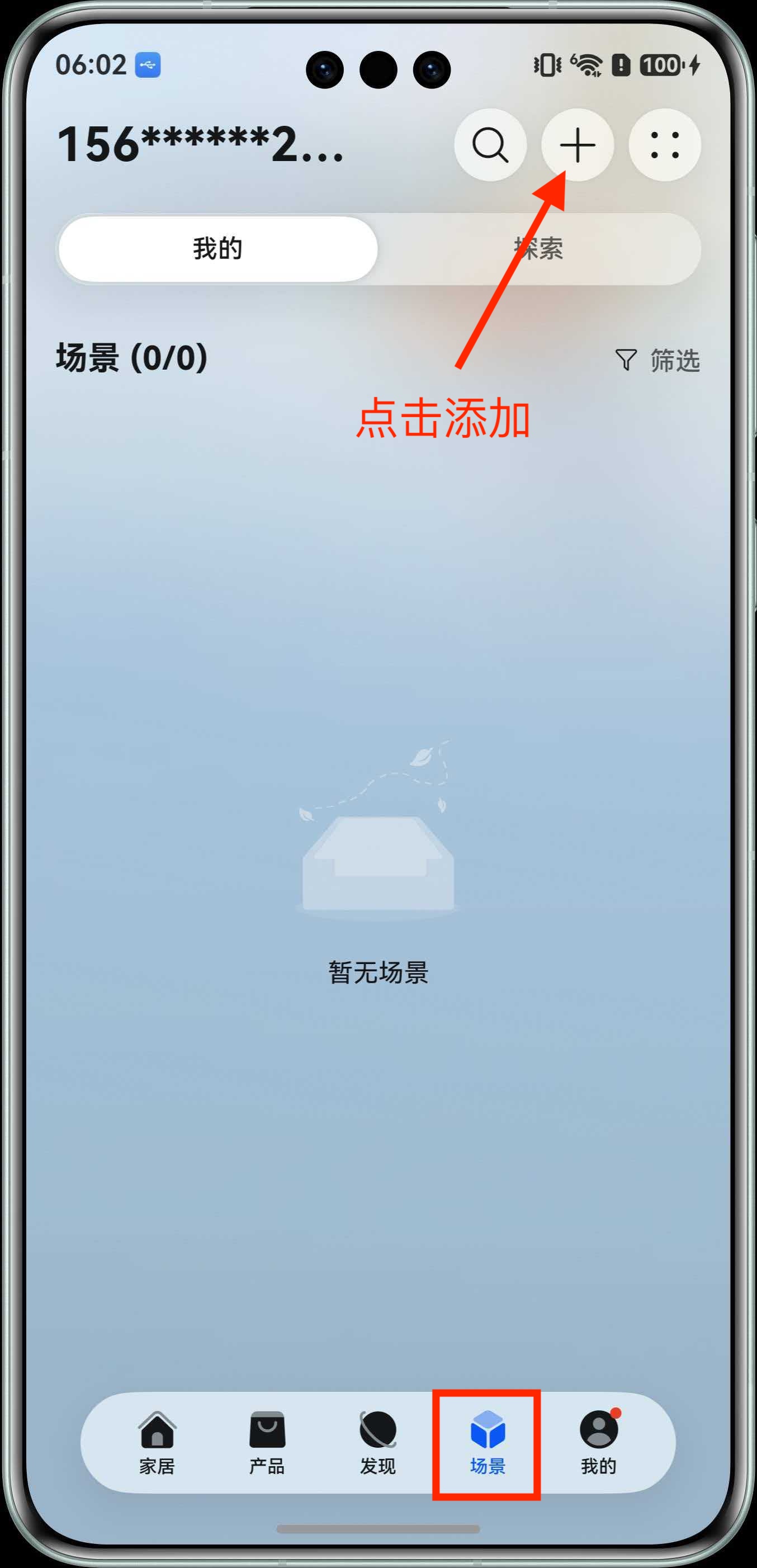
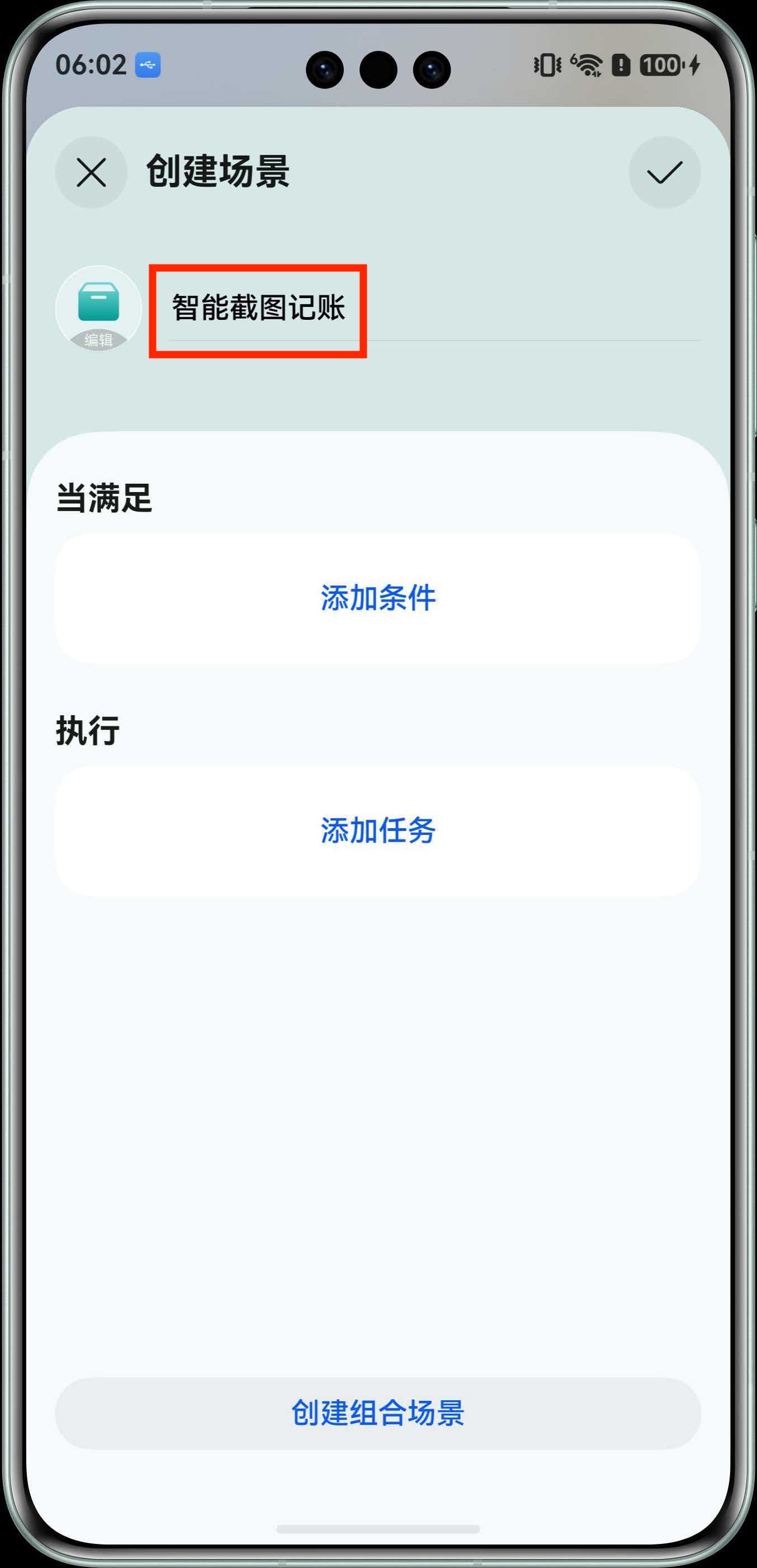
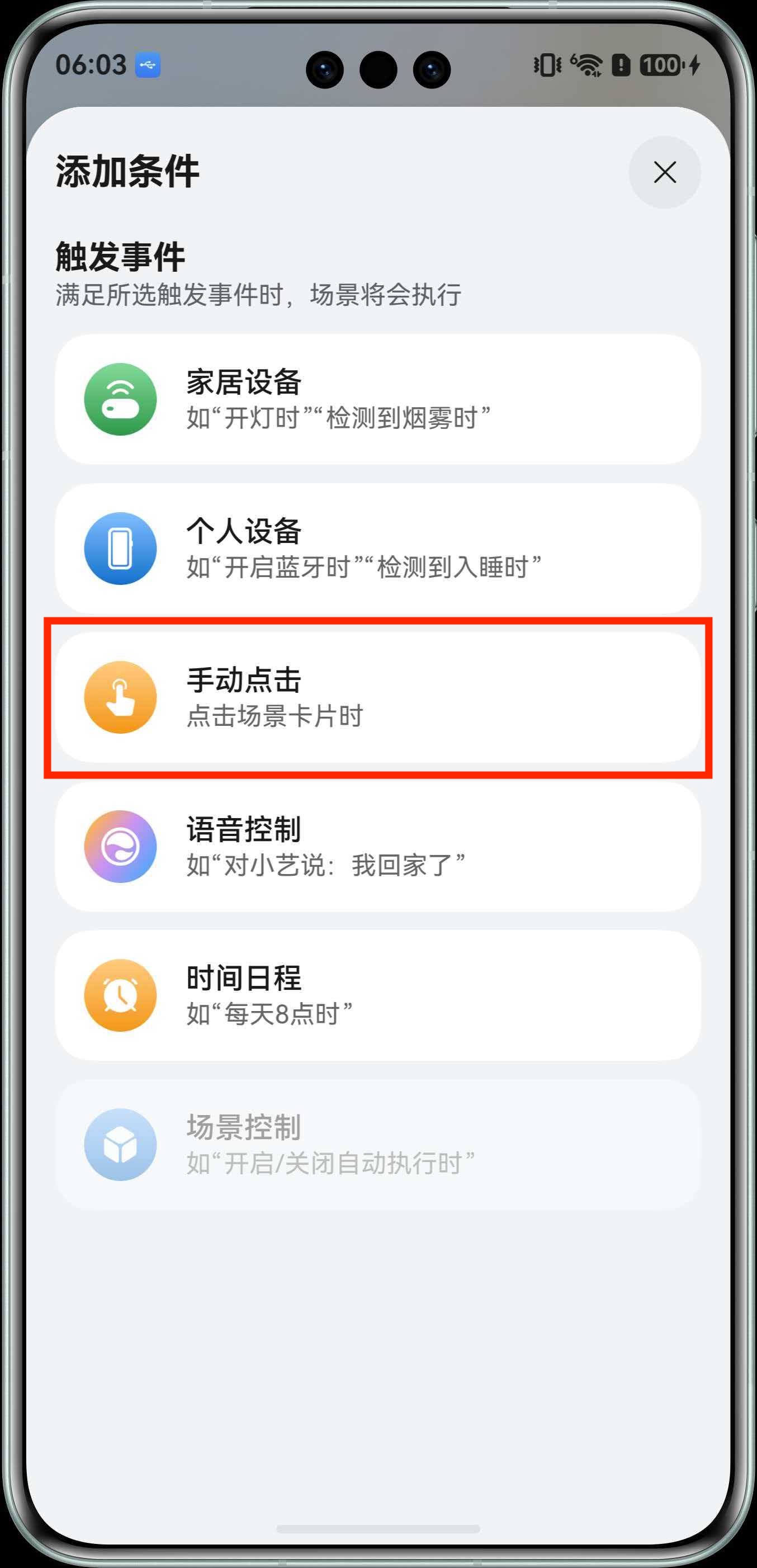
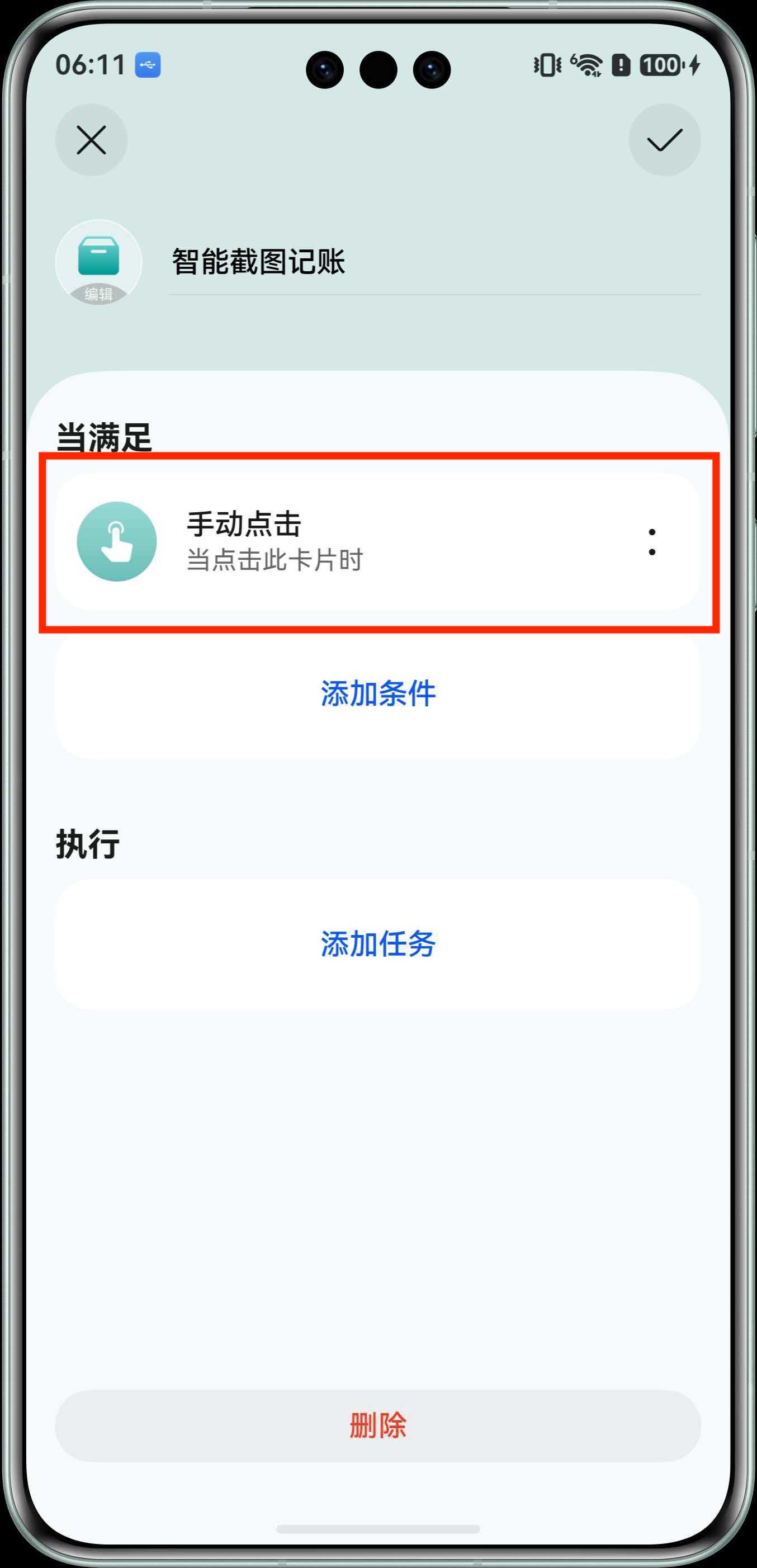
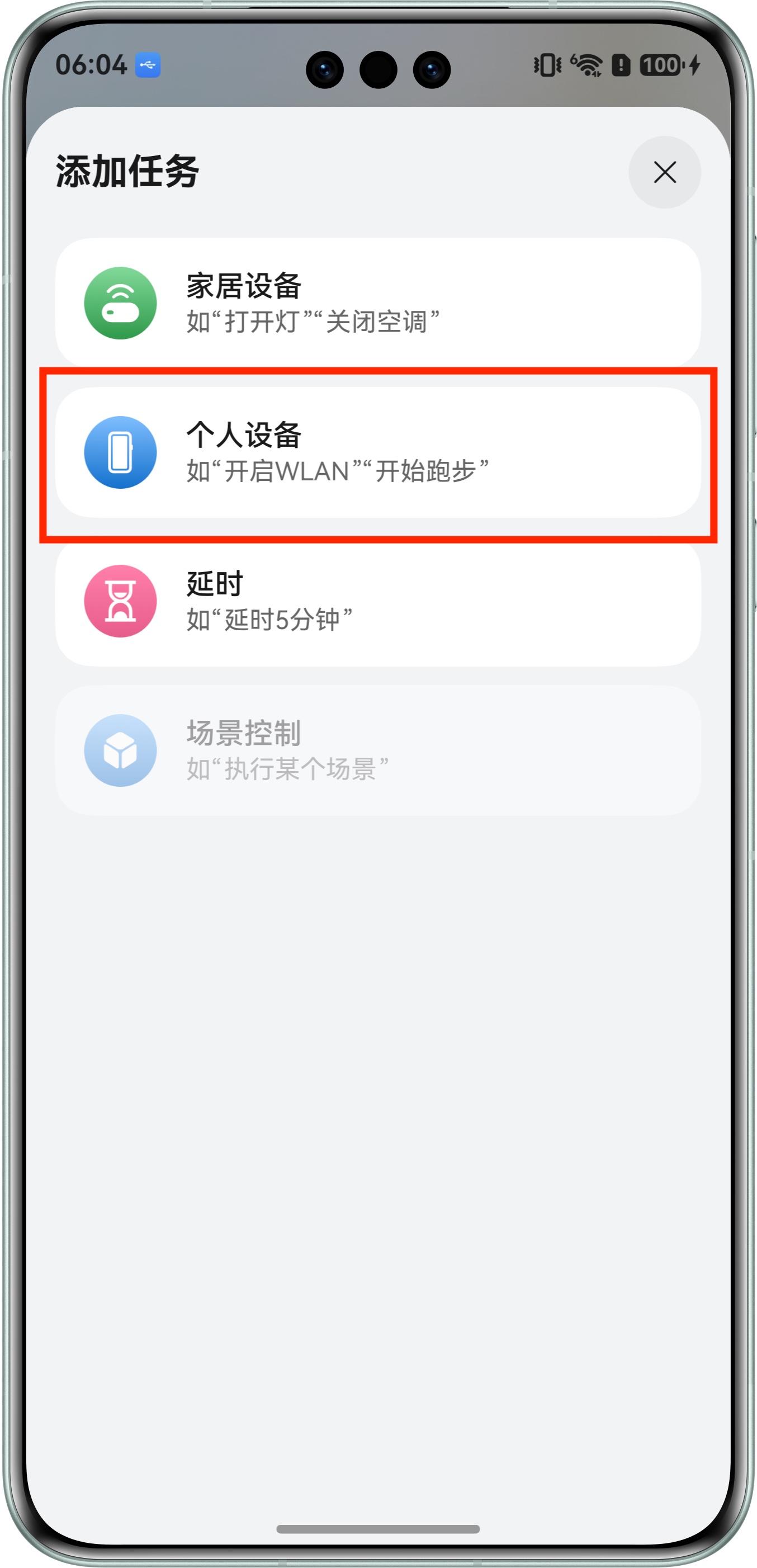
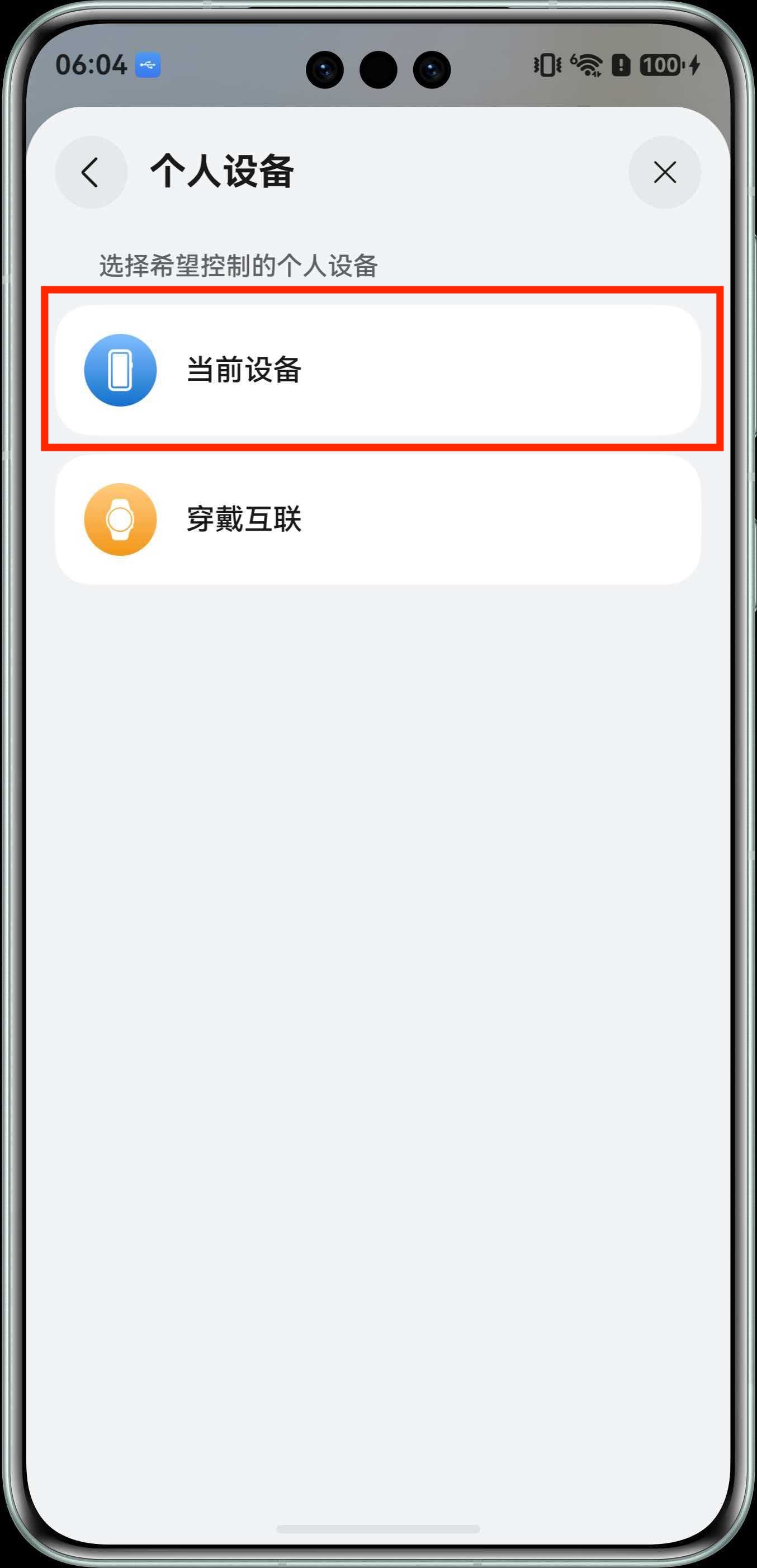
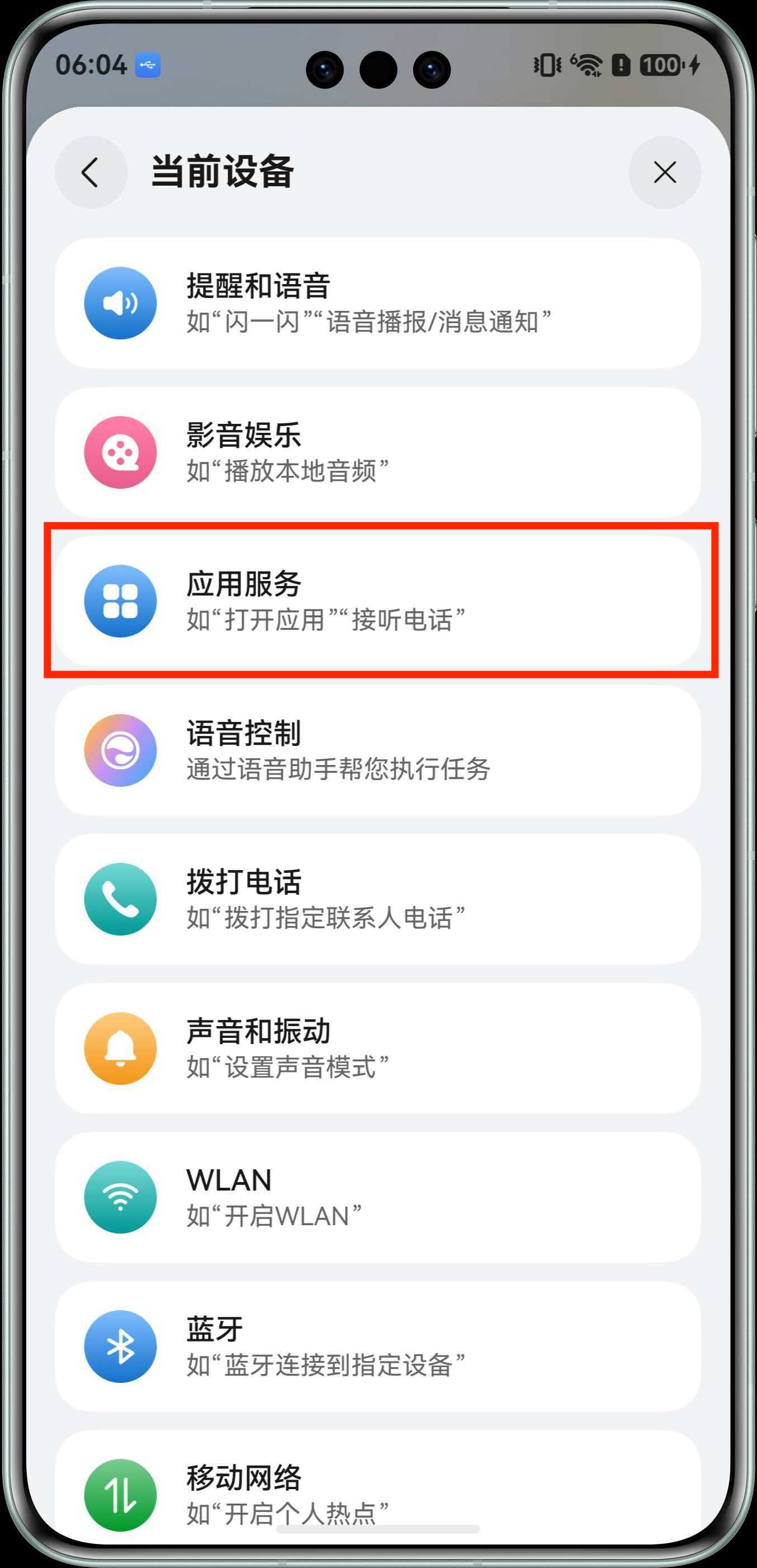
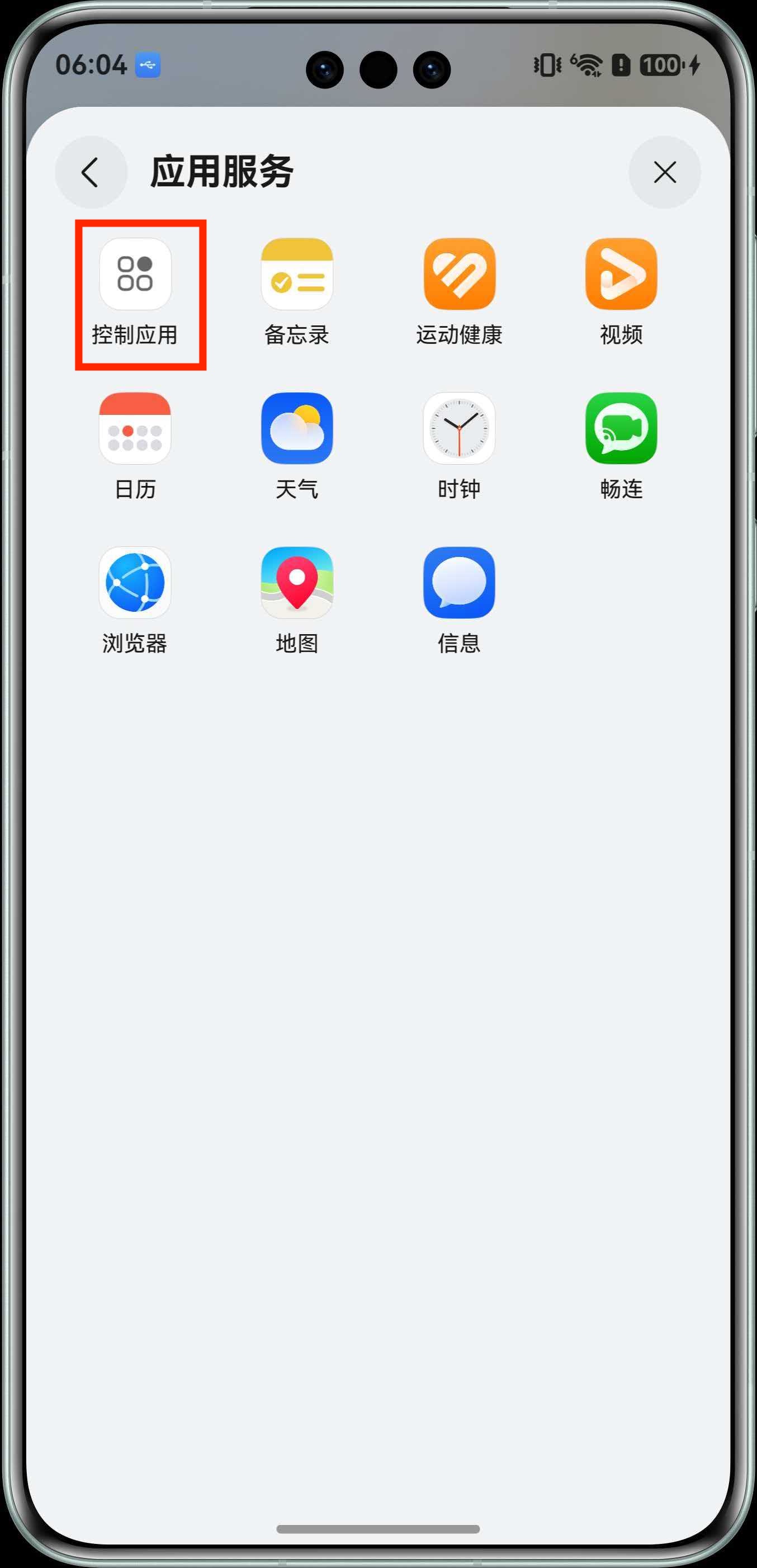
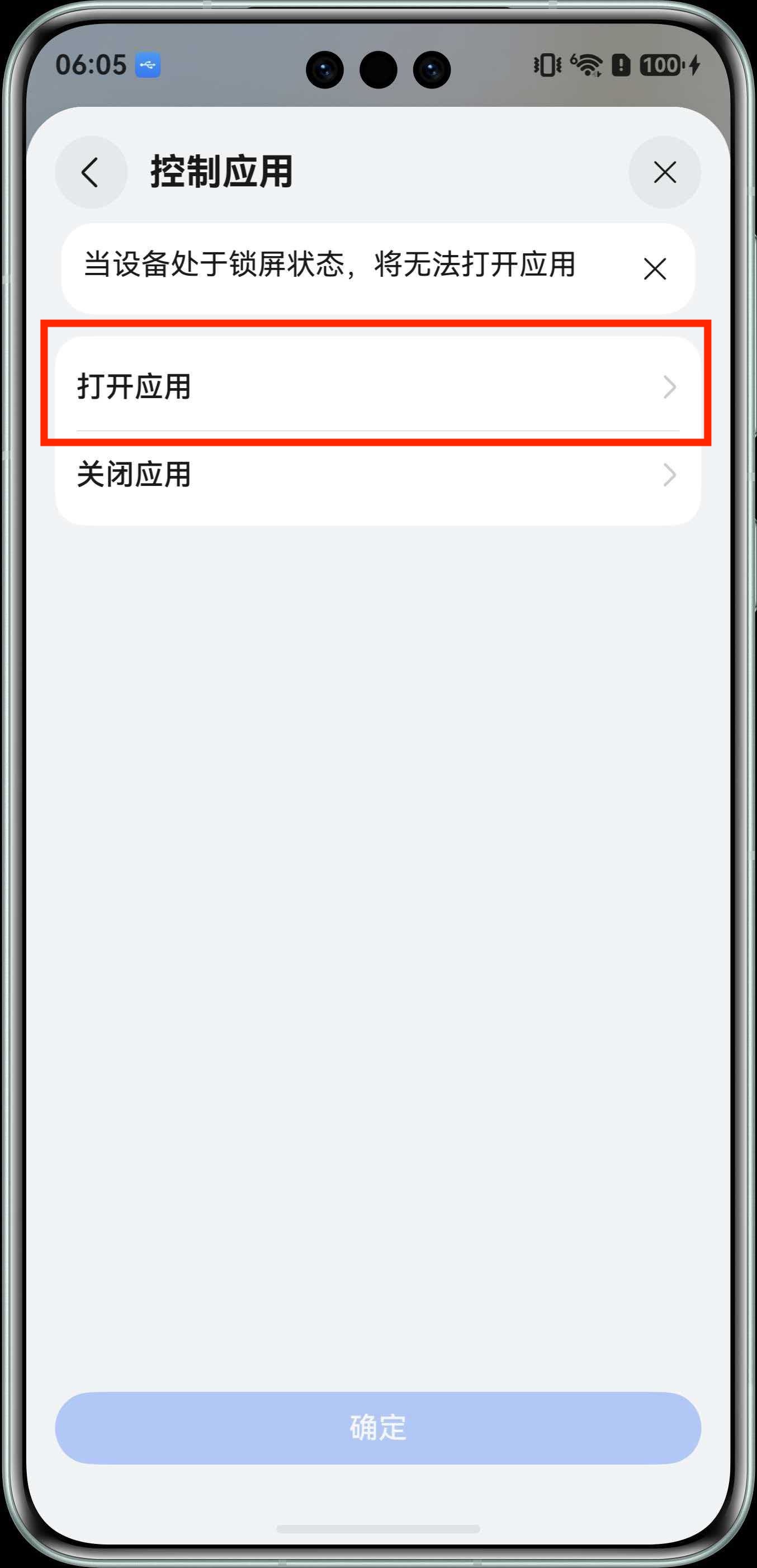
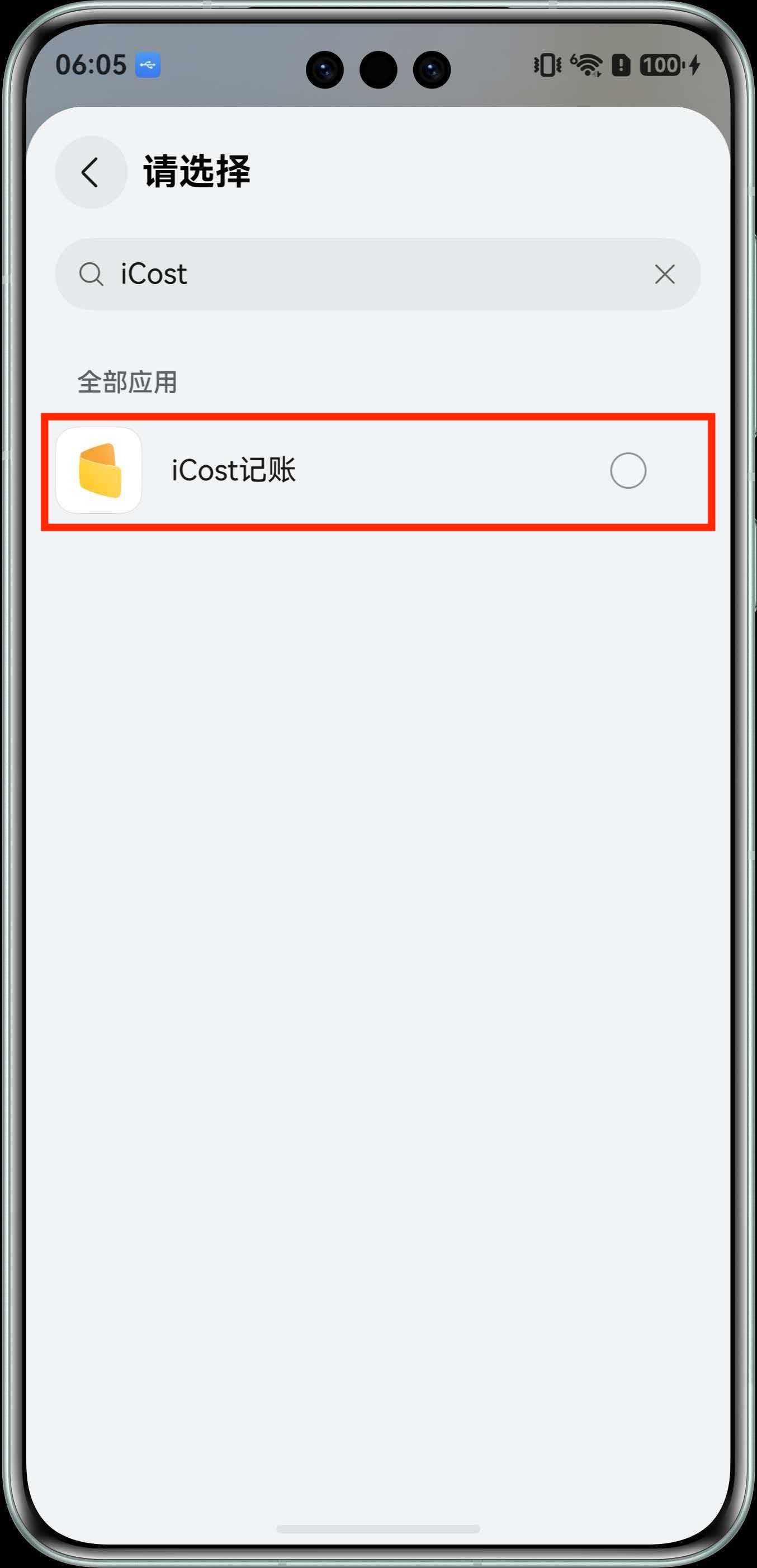
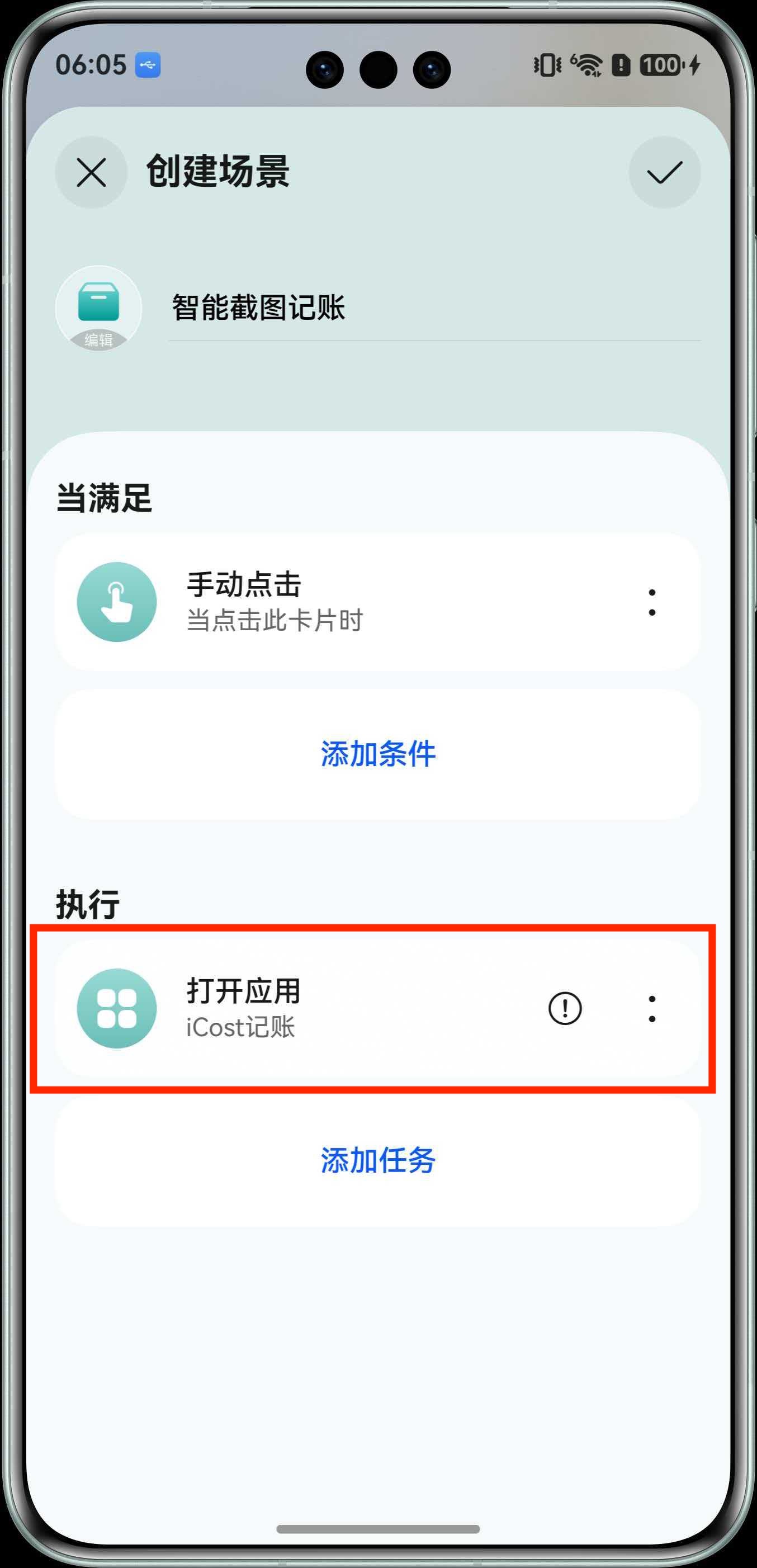
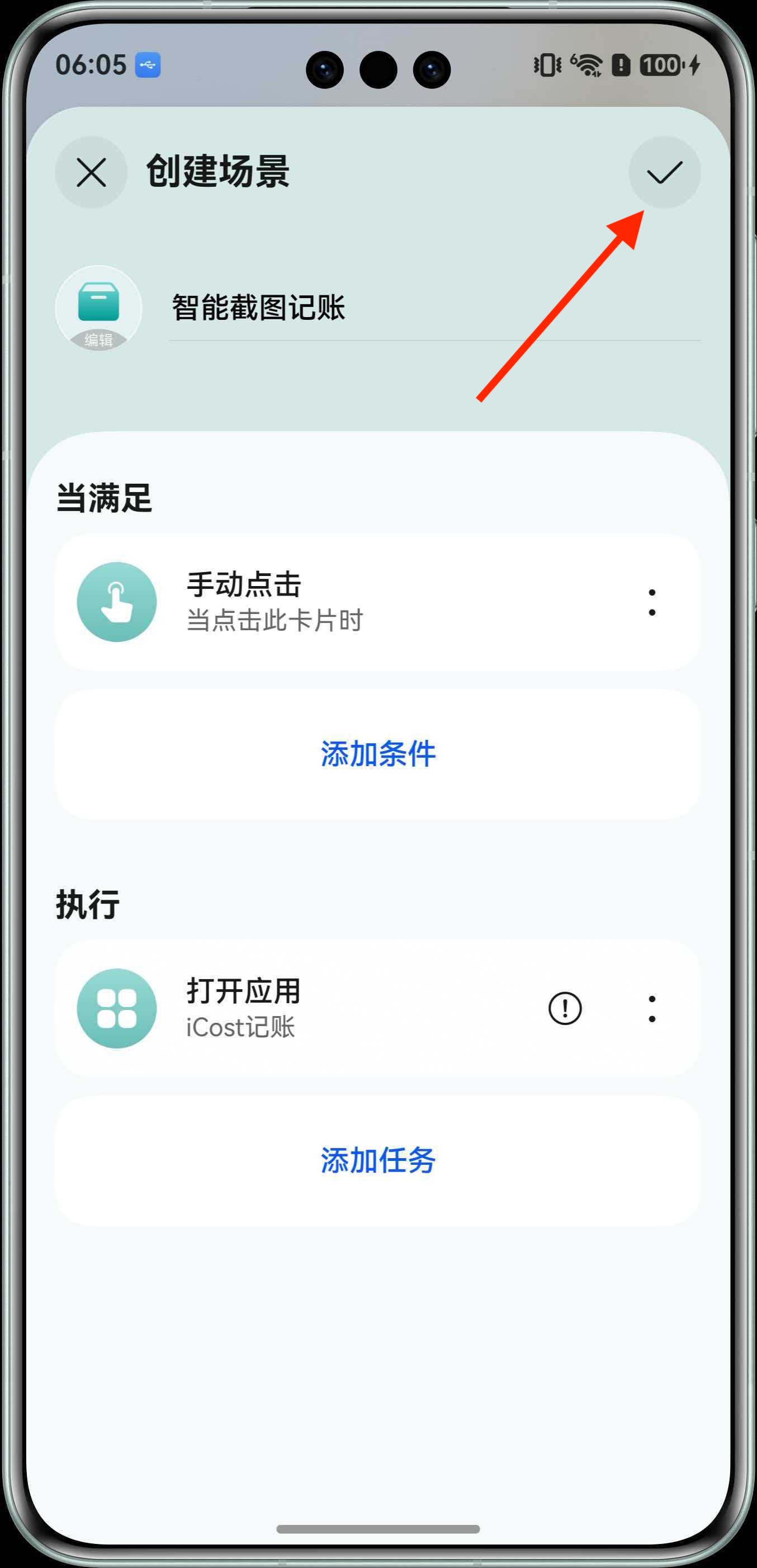
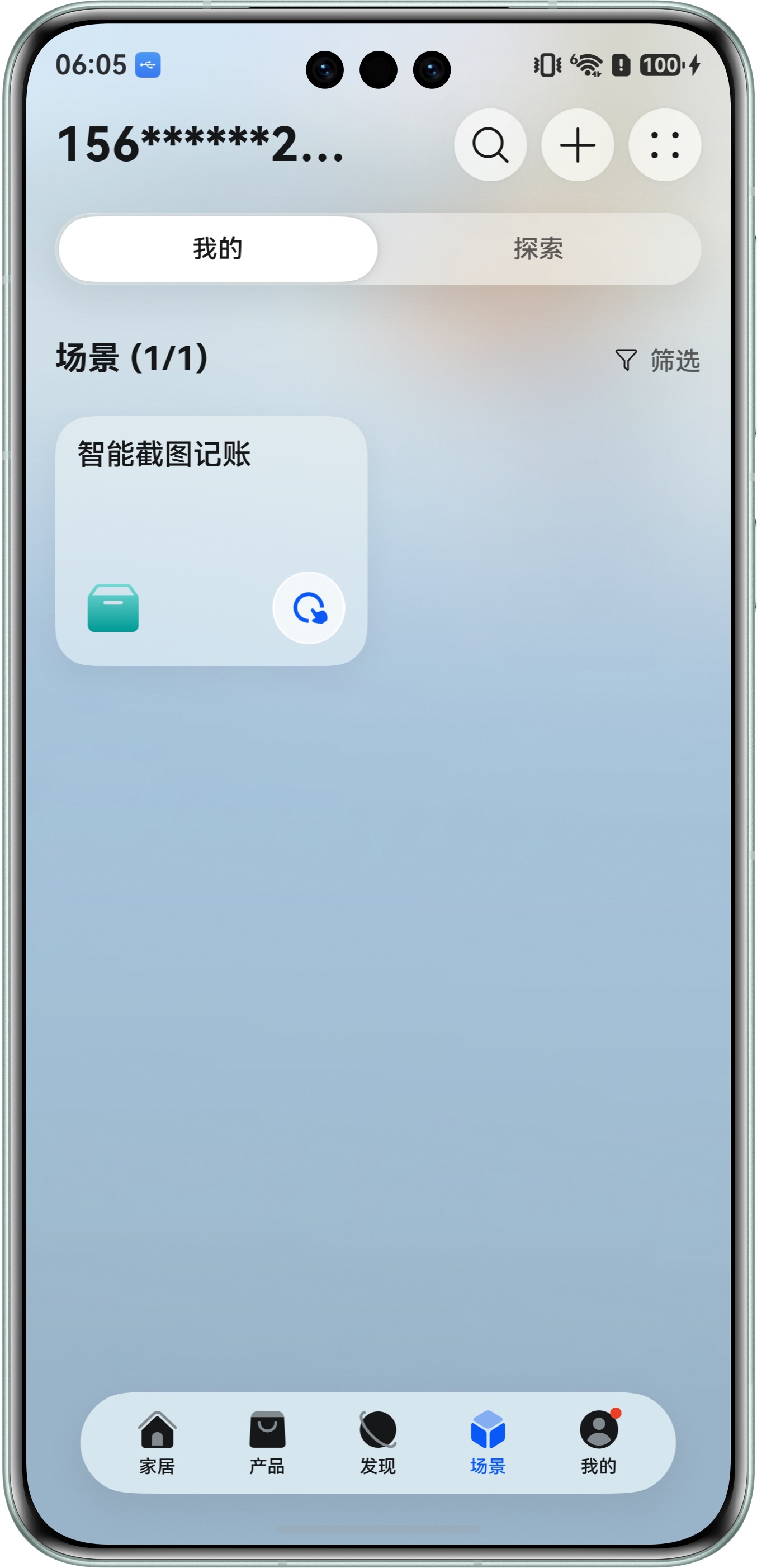
3. Add the Control Center Shortcut Tile Pull down the system Control Center, tap "+" or "Edit", and add the newly created "Smart Screenshot Accounting" scene to the Control Center tile area. 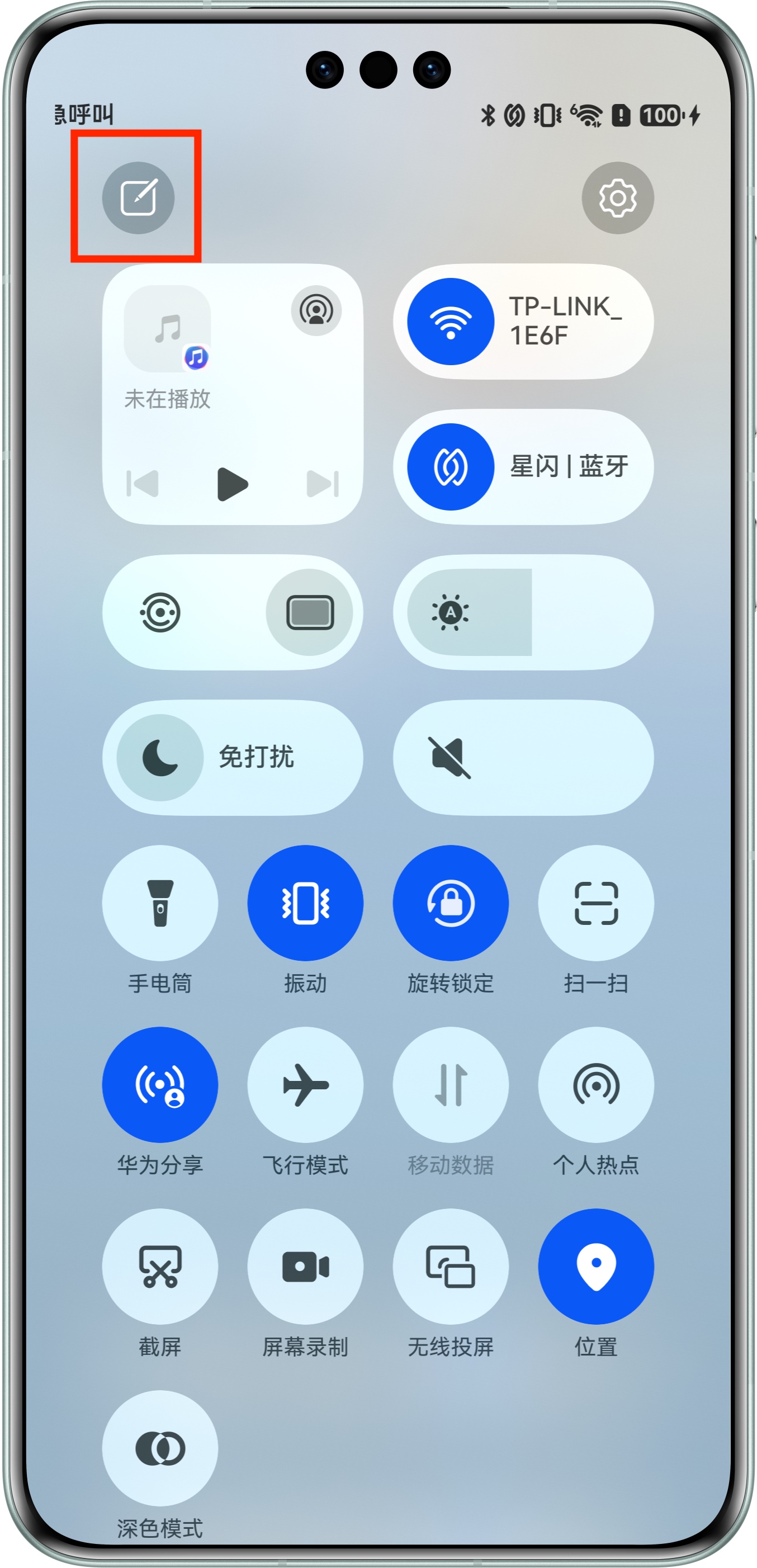
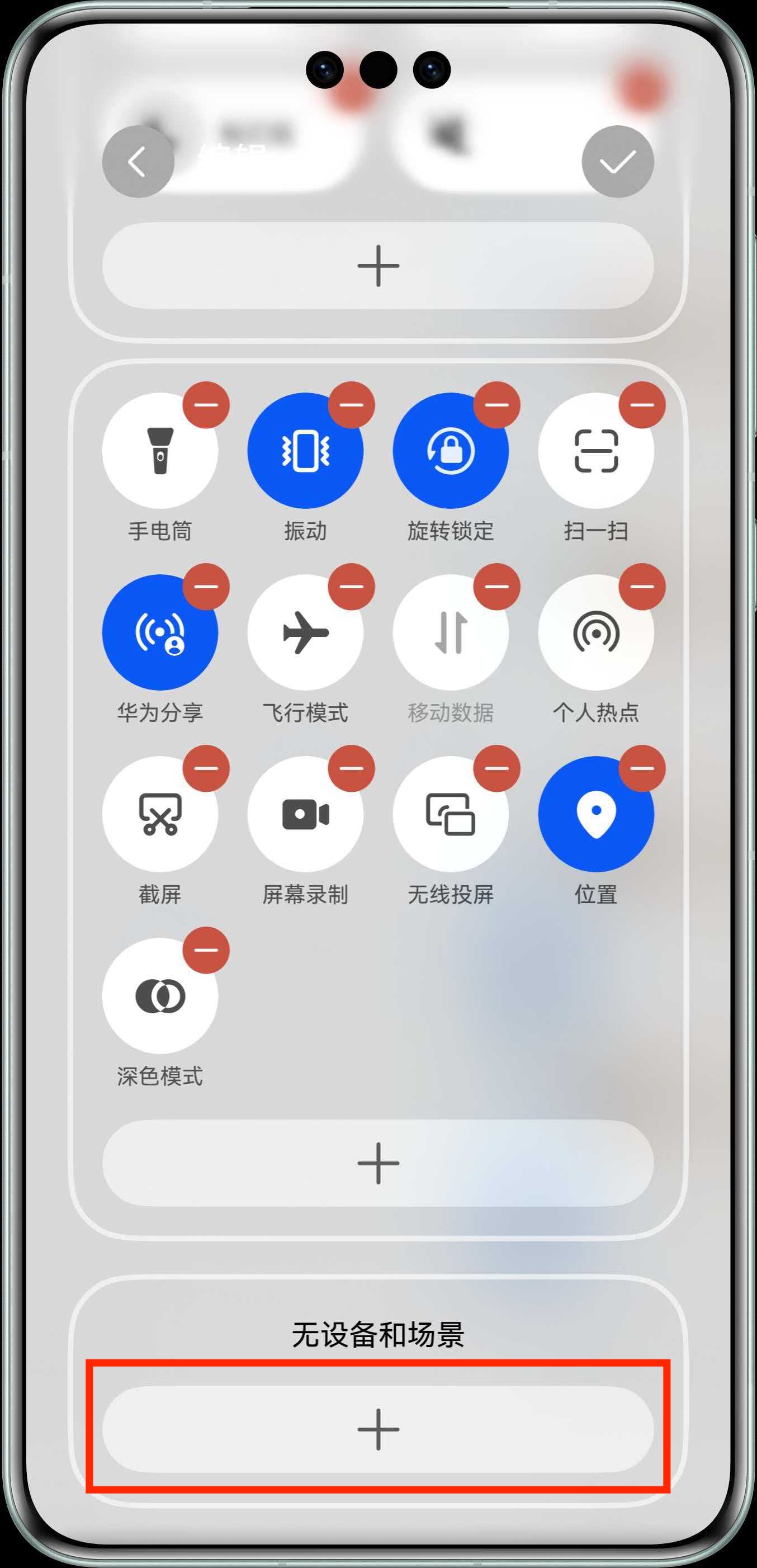
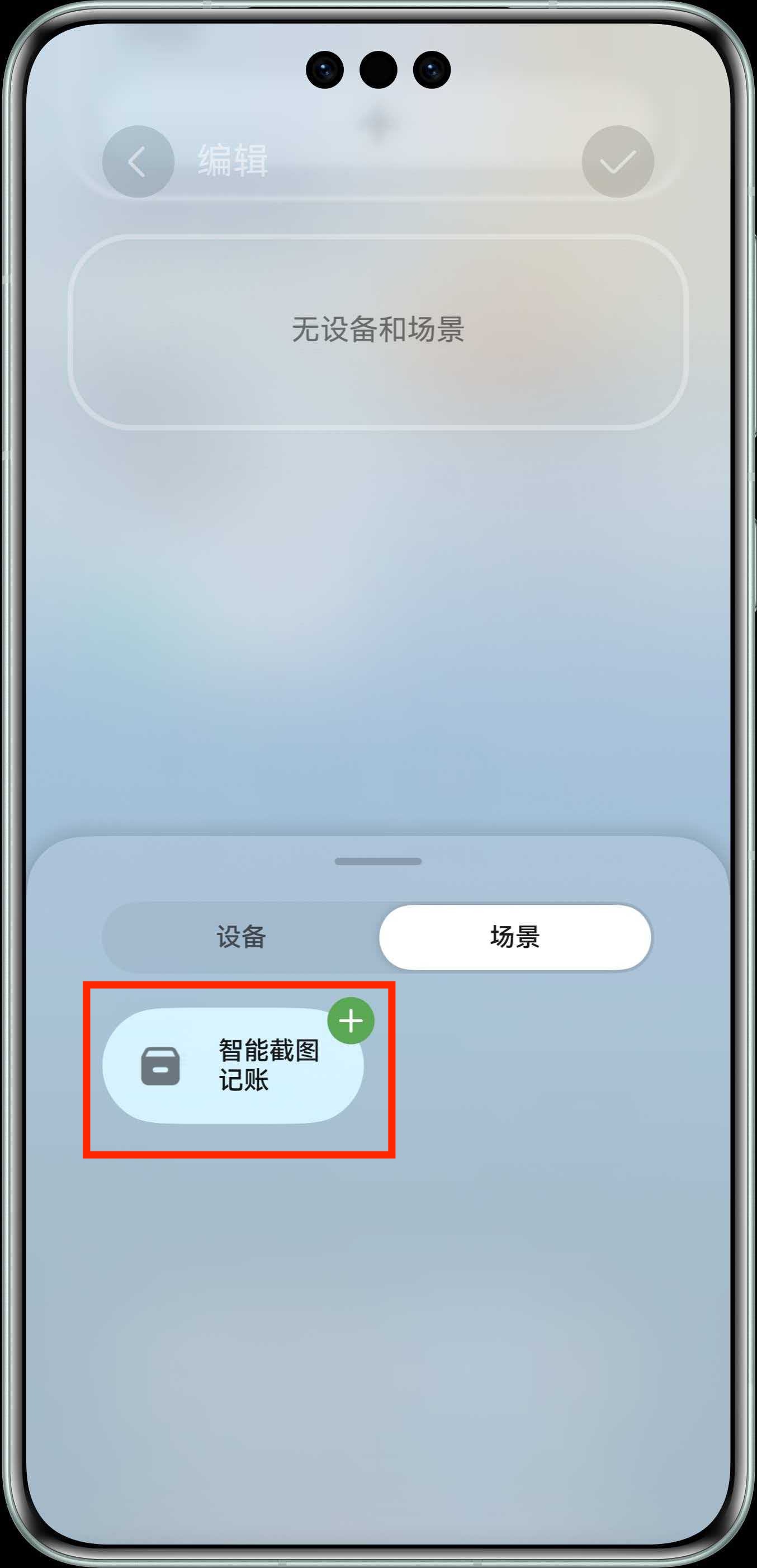
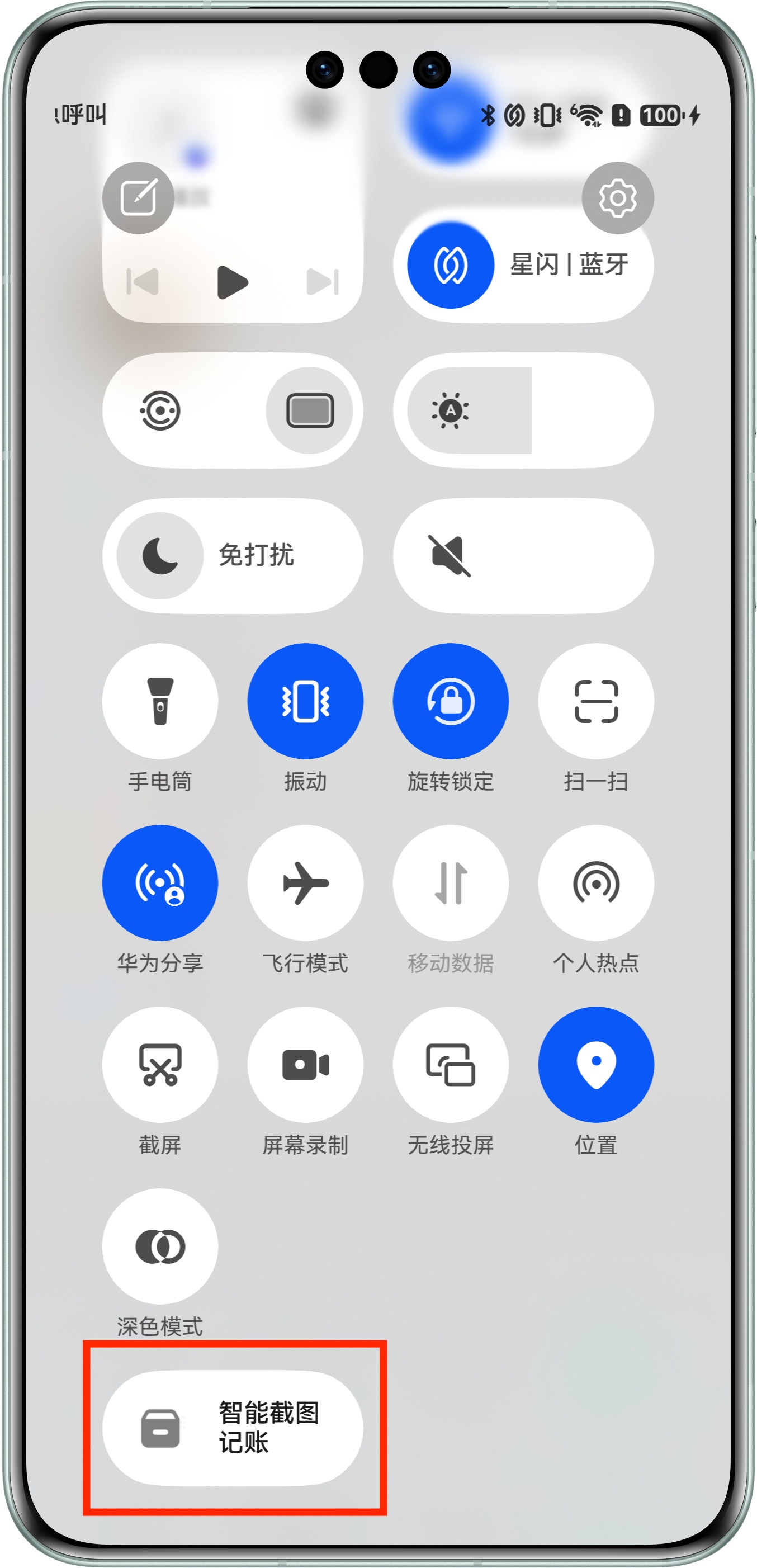
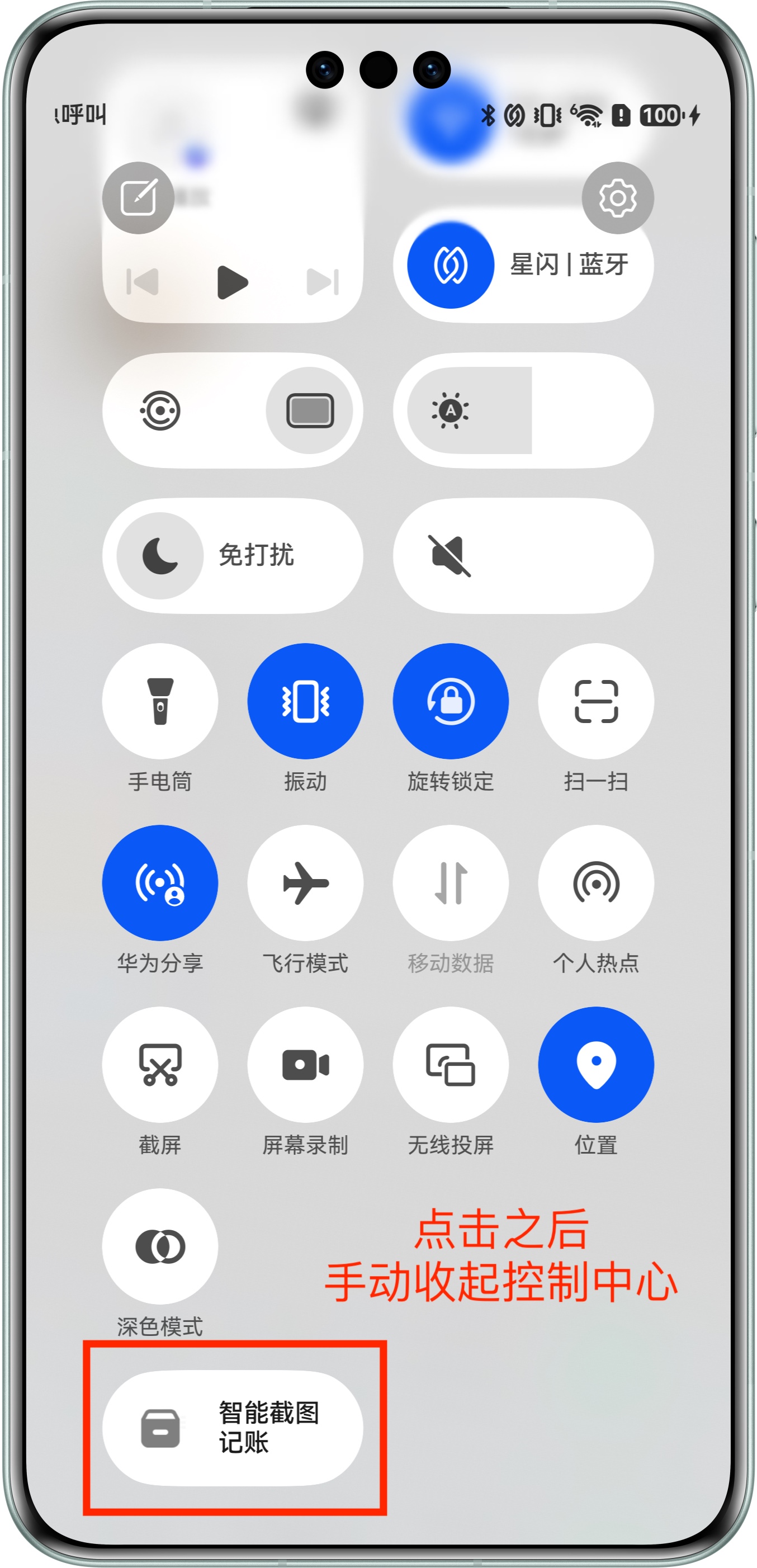
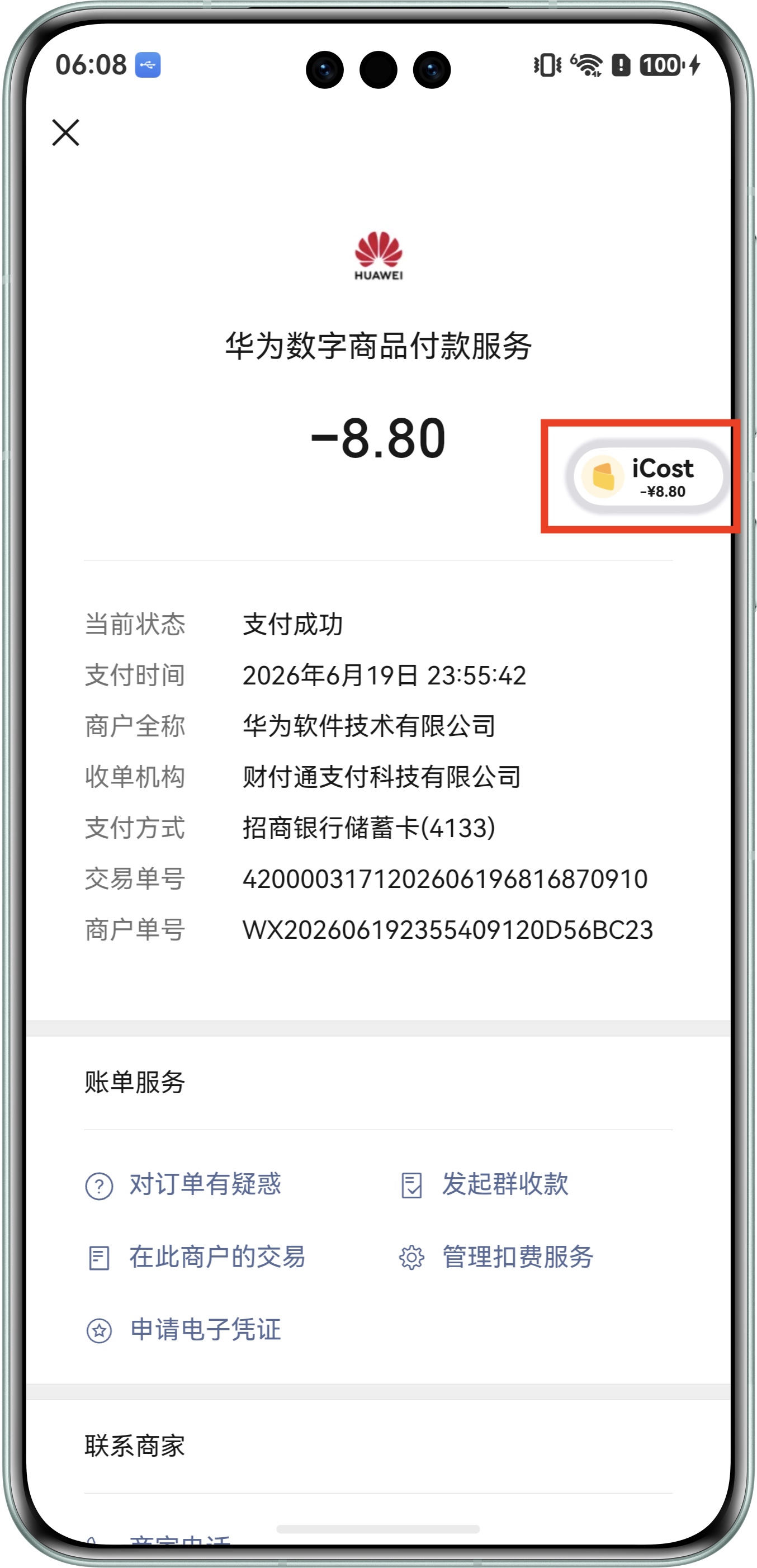
4. Recognize the Bill Open the bill details page, open Control Center, and tap the "Smart Screenshot Accounting" tile. After tapping it, manually close Control Center. This is important. 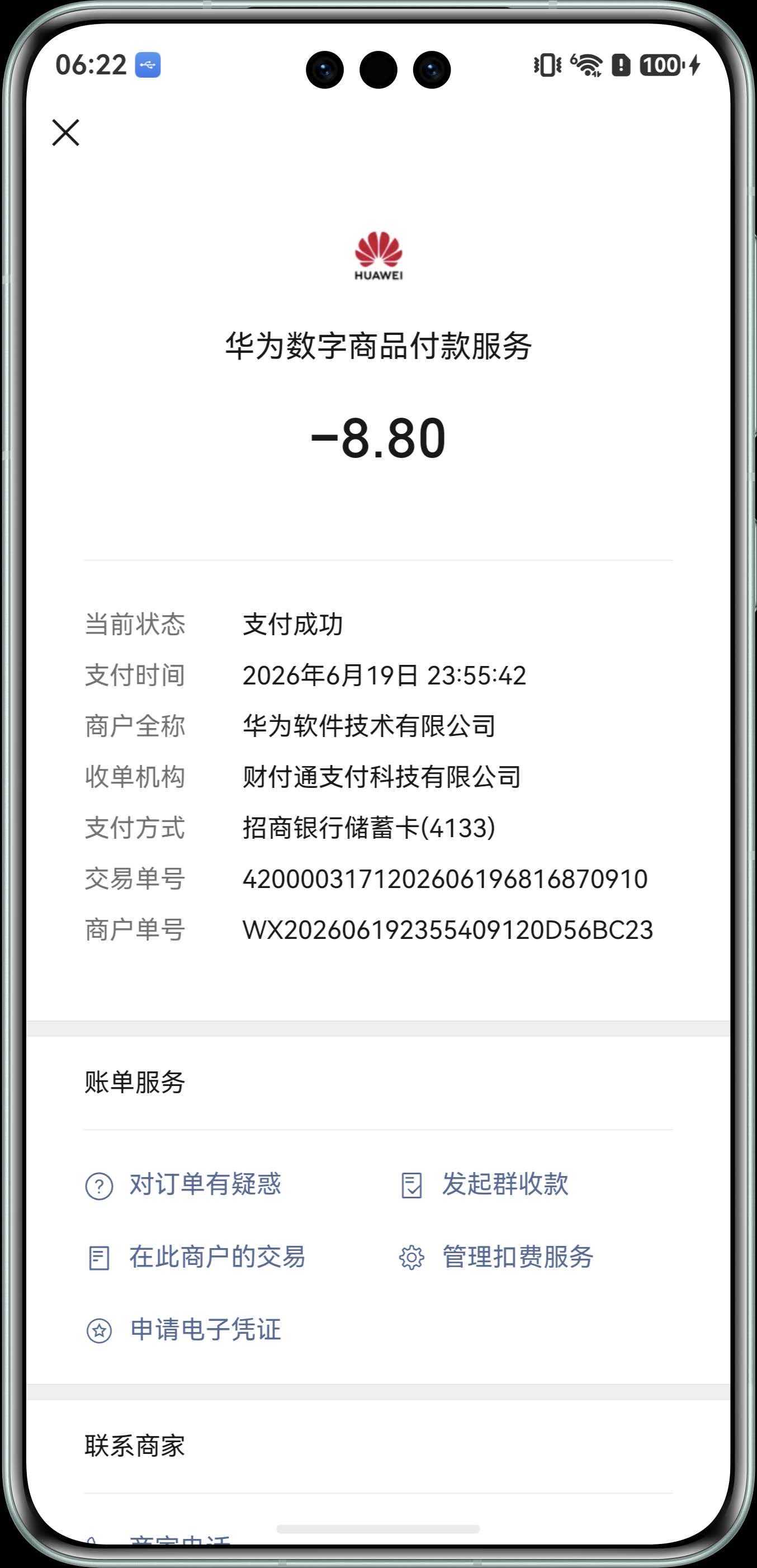
1. Enable Screenshot Recognition Turn on the Screenshot Recognition switch. 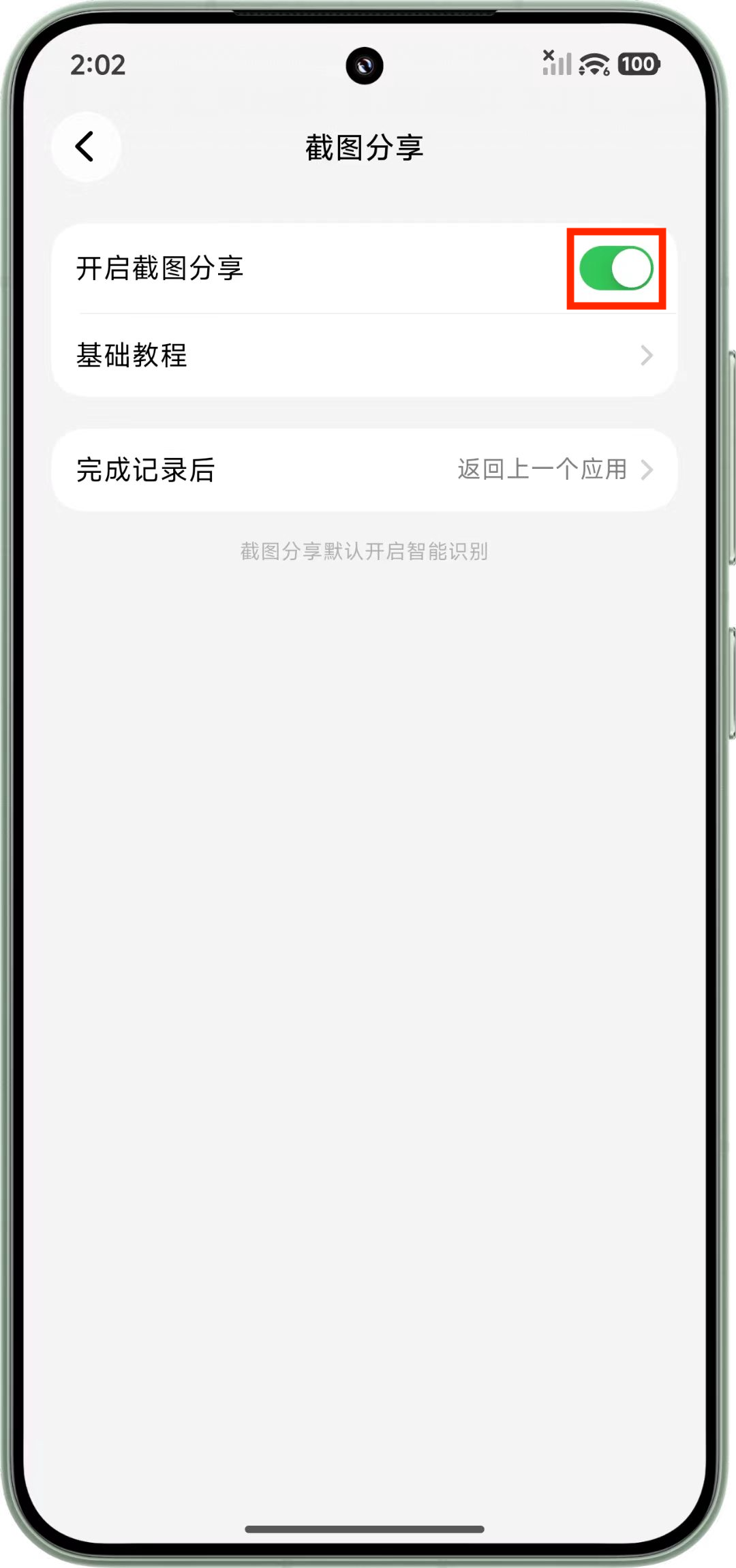
2. Take a Screenshot and Share It to iCost On the bill details page or payment success page, take a screenshot and share it to iCost from the system share sheet. 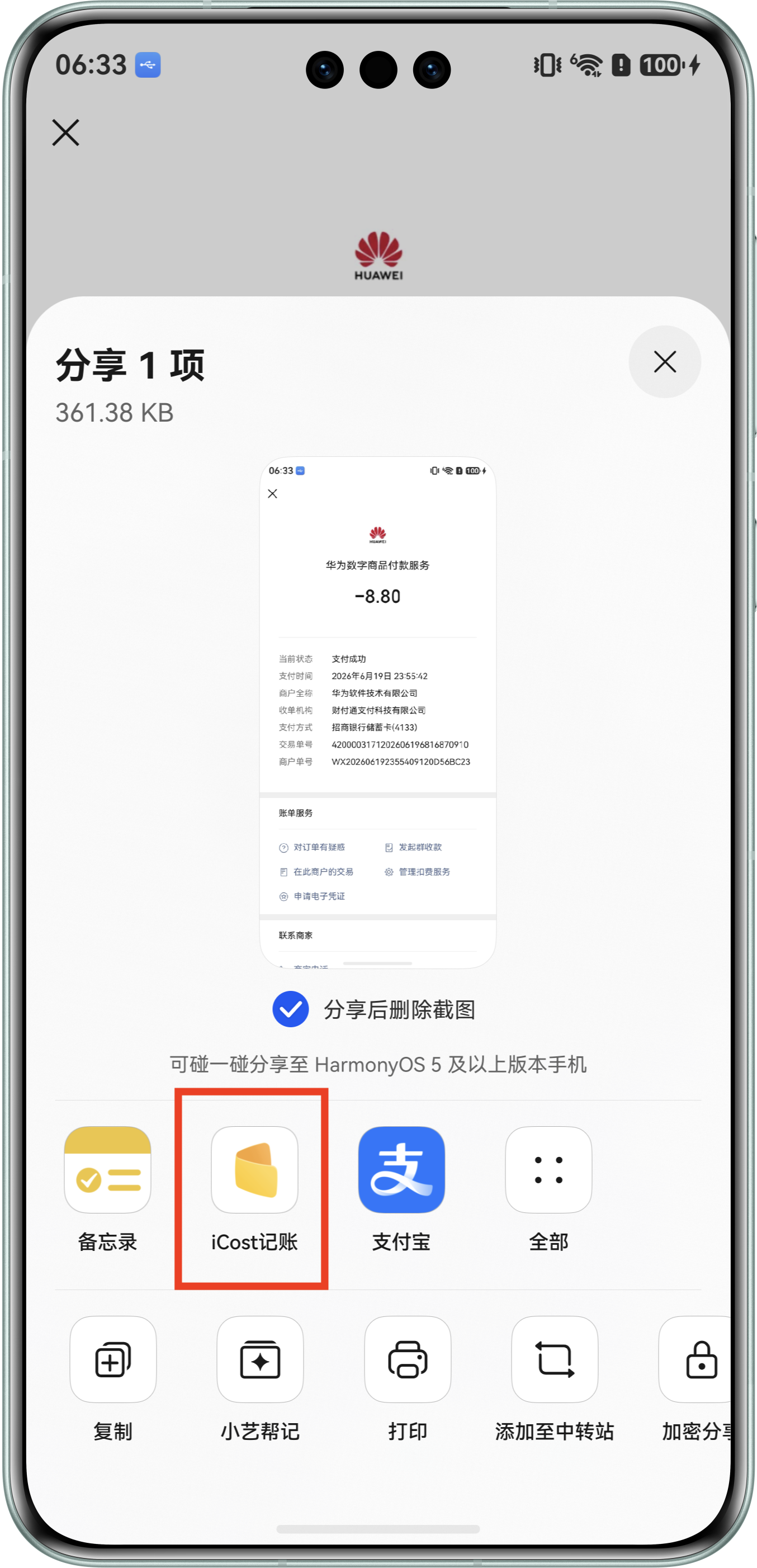
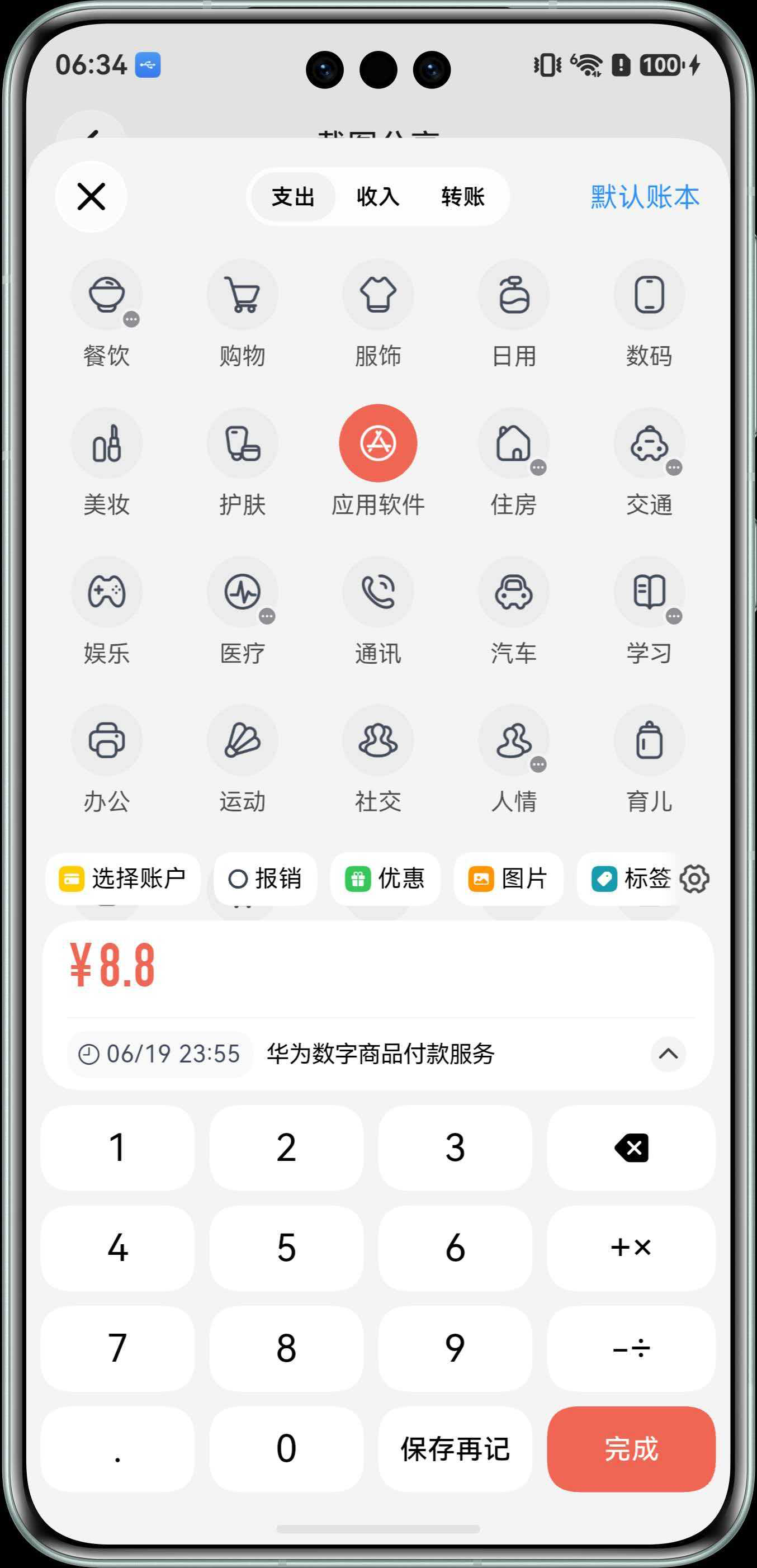
# III. Permission Notes
- Screenshot recognition permission: used to trigger recognition and read the current page content.
# IV. FAQ
# 1) Smart Accounting does not respond
Check the following:
- Confirm that Smart Accounting is enabled in iCost.
- Confirm that the required system permissions have been granted.
- Confirm that you are on the bill details page or payment success page.
# 2) "Smart Screenshot Accounting" cannot be found in Control Center
First confirm that the "Smart Screenshot Accounting" scene has been created and saved in the Smart Life app, then go to the system Control Center edit page to find and add it. The exact Control Center entry may vary by HarmonyOS version.
# 3) Recognition result is inaccurate
Use the bill details page or payment success page whenever possible, and make sure the amount, merchant, time, payment method, and other information are fully visible.