
# Smart Accounting
# I. Feature Overview
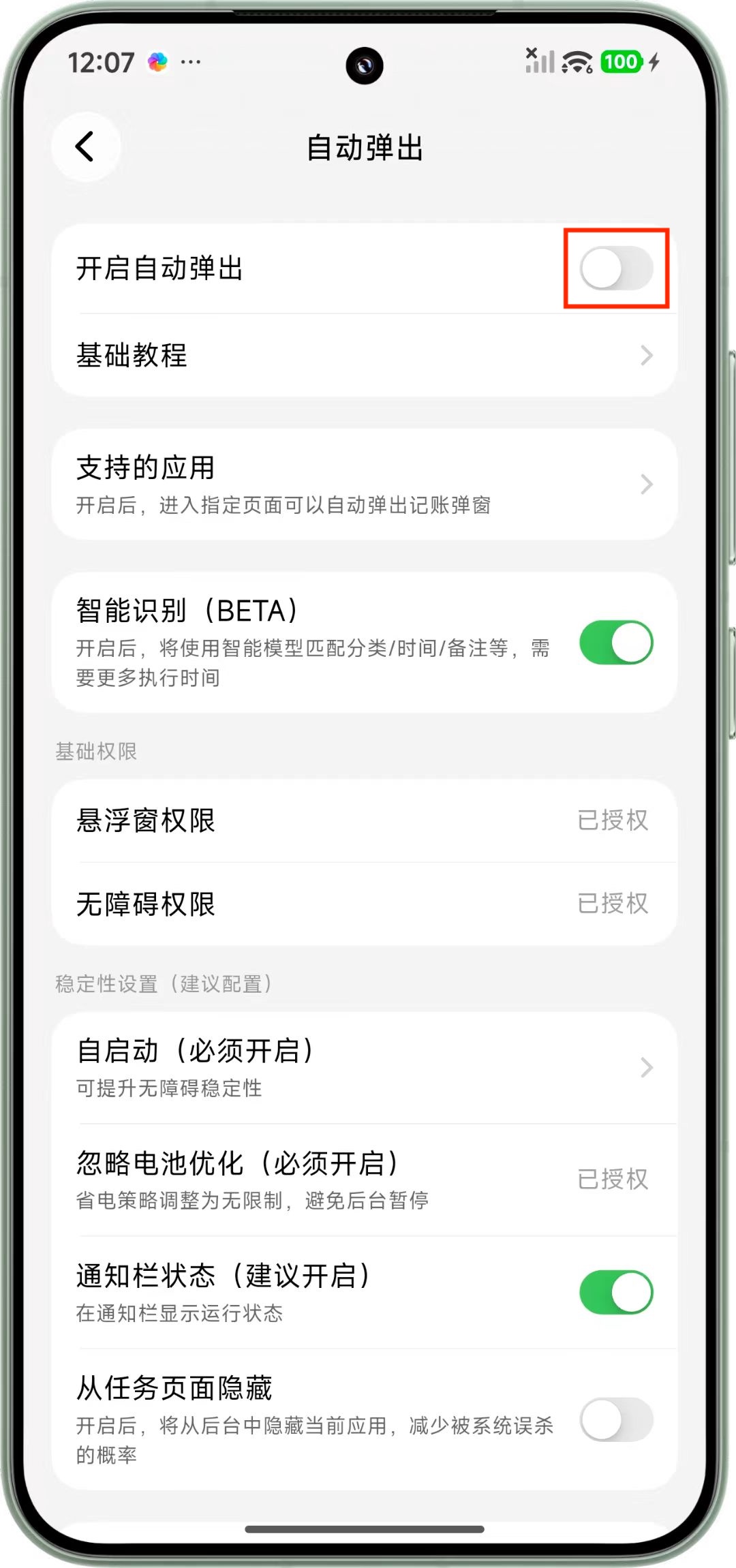
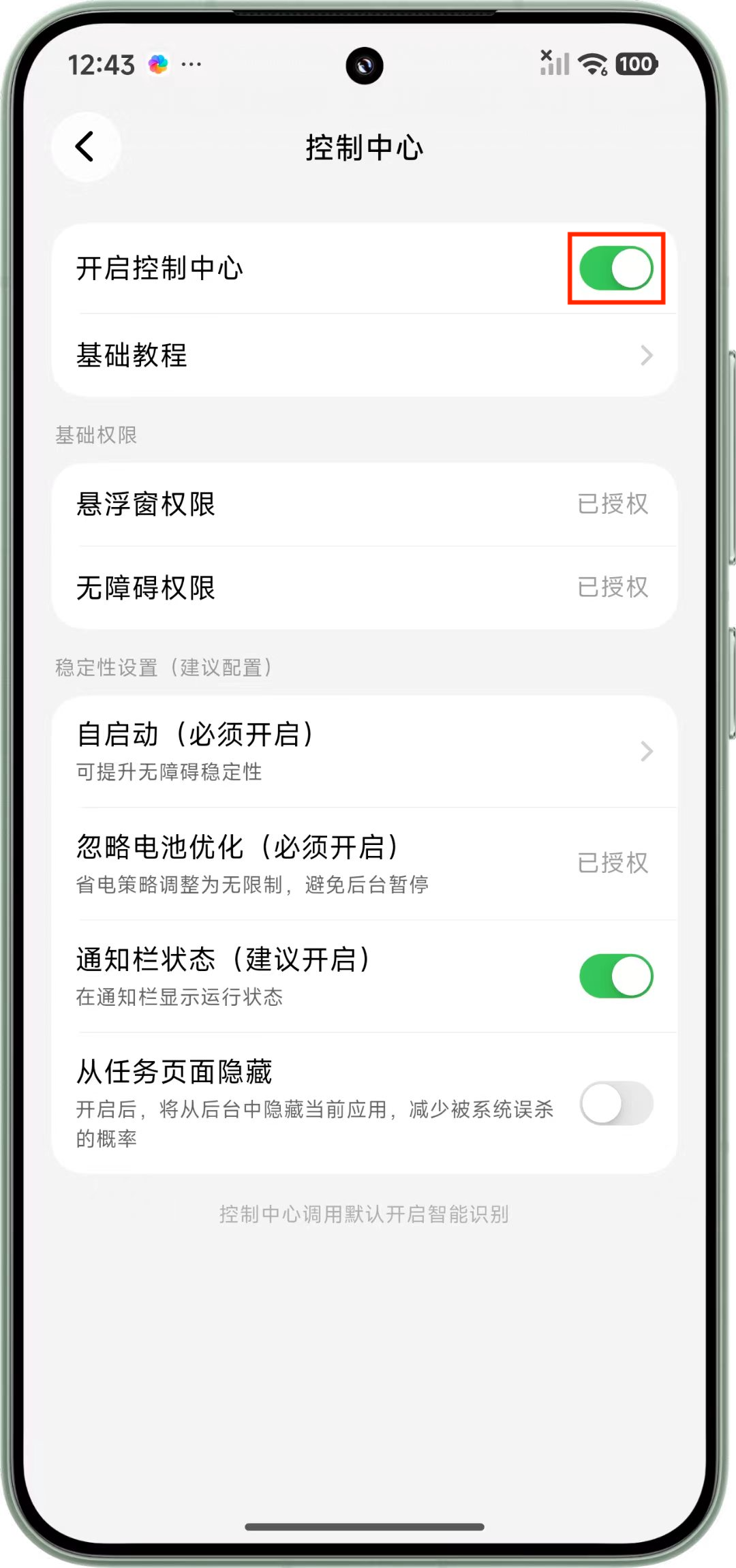
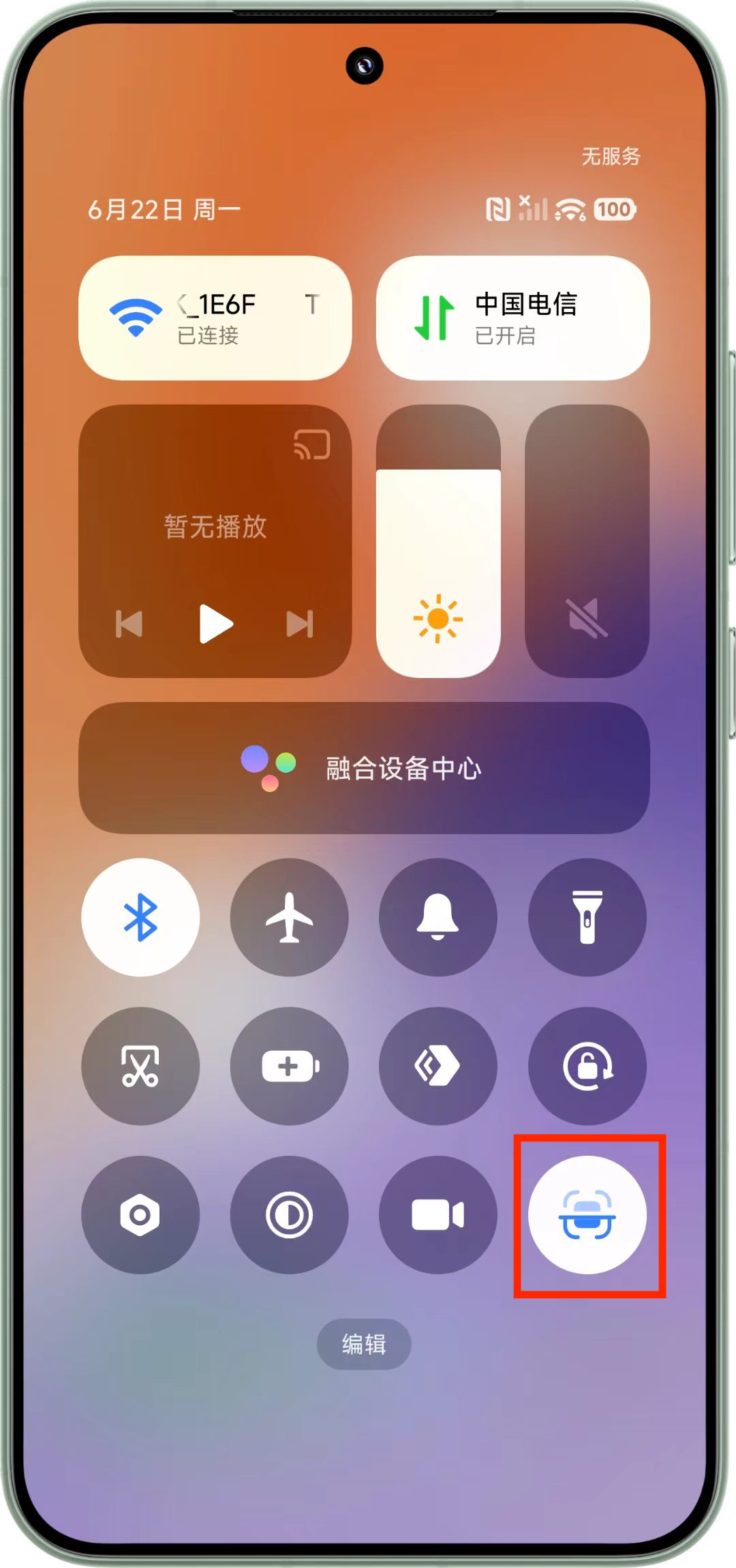
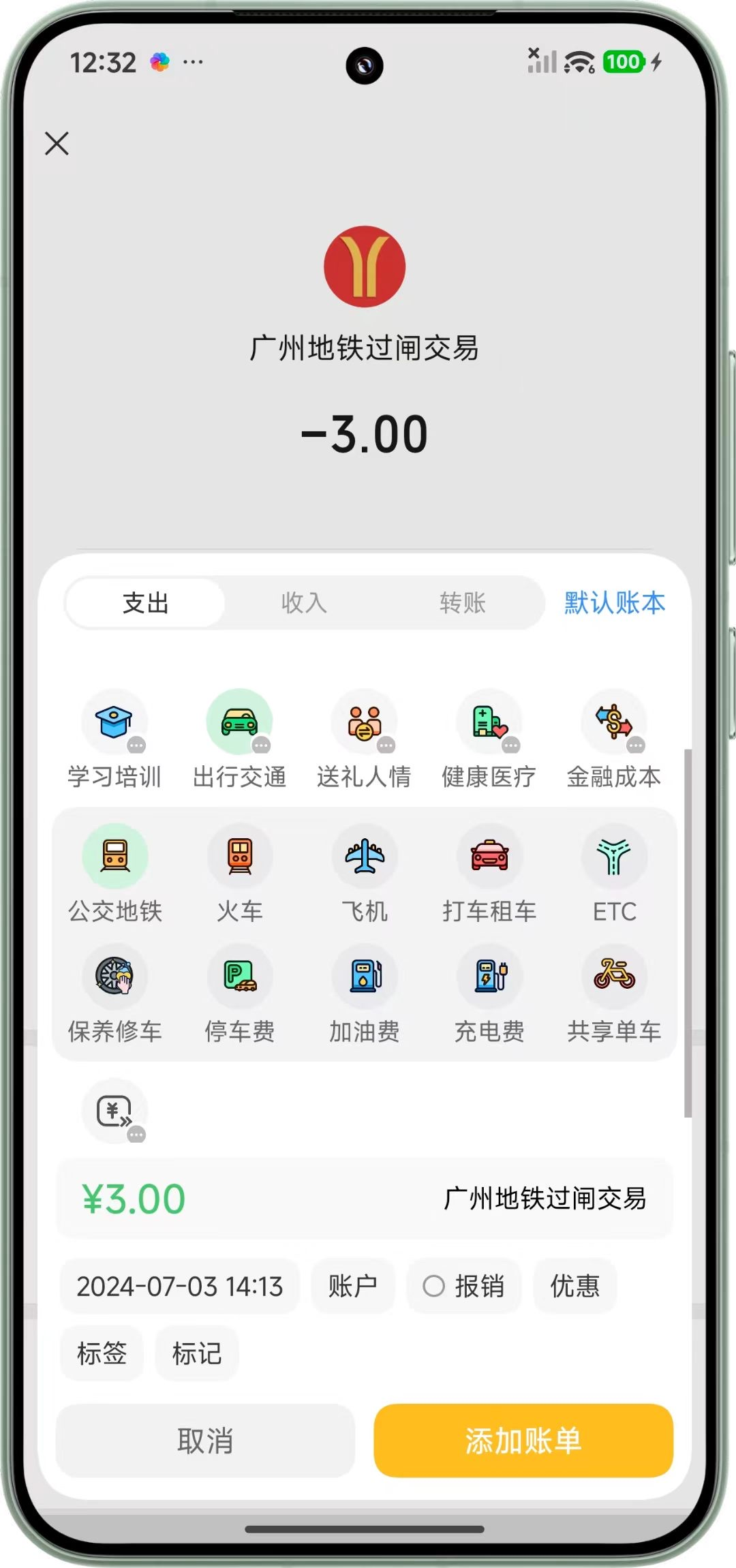
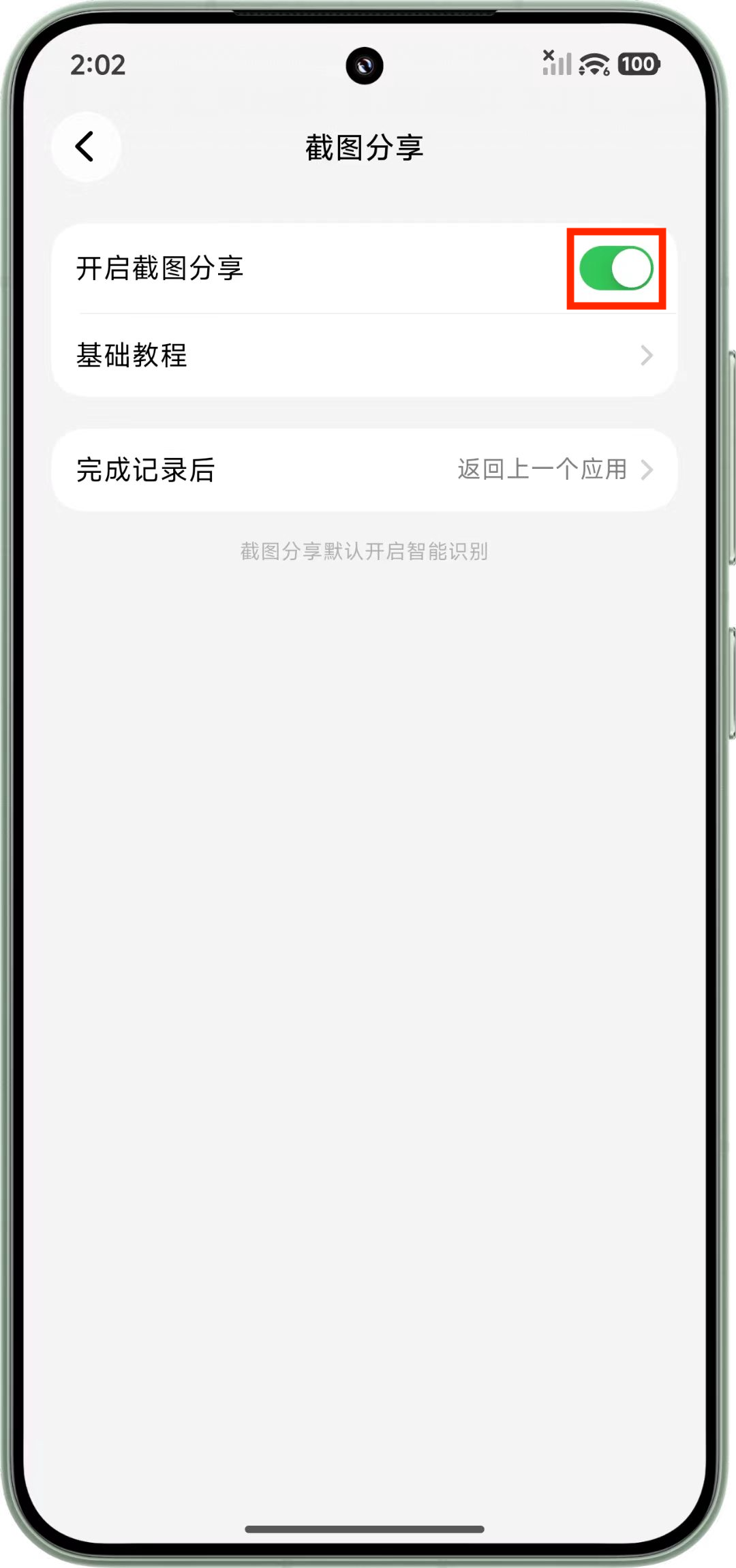
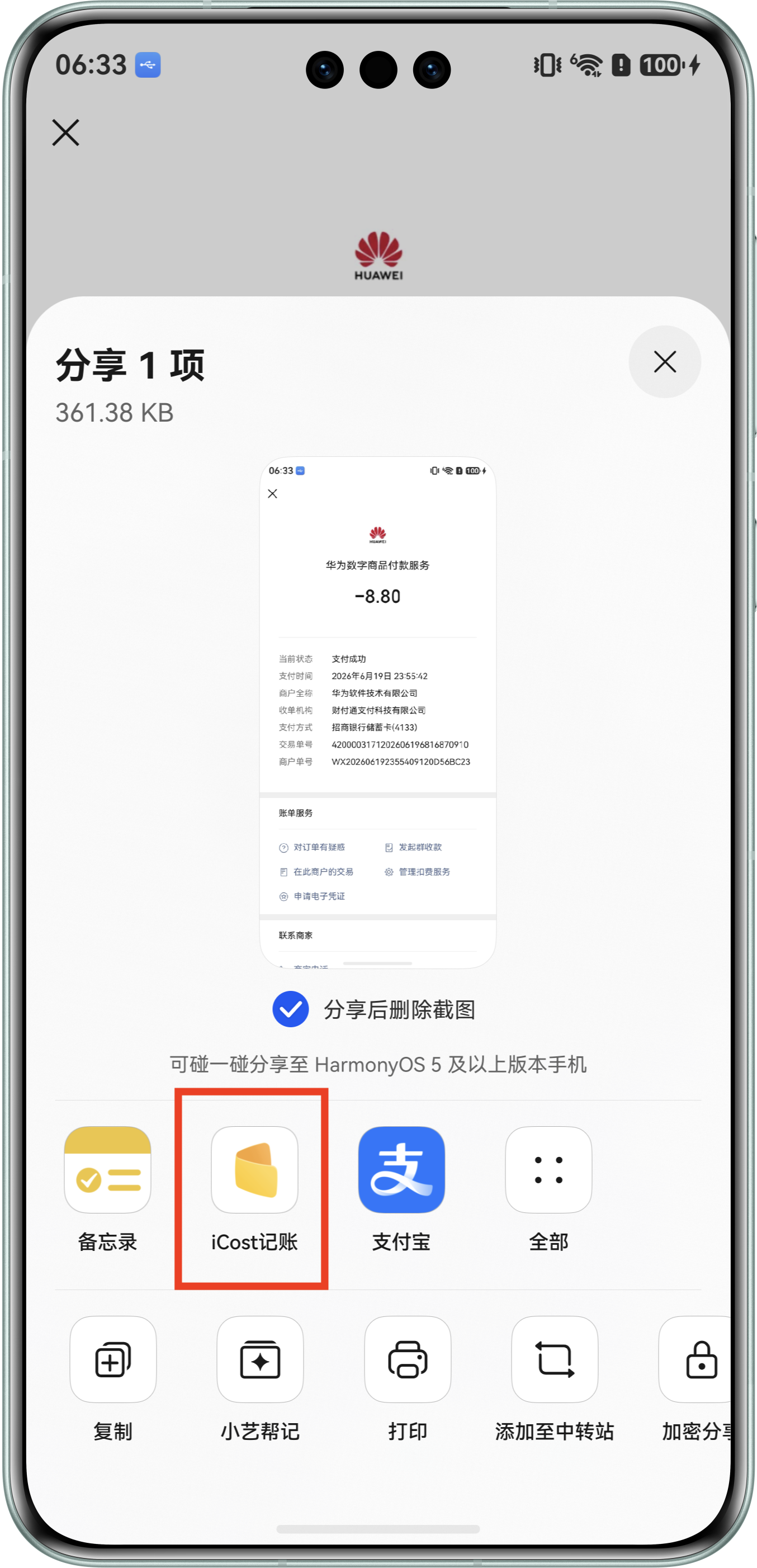
On Android, Smart Accounting depends on the system Accessibility service running continuously in the background. Choose whether to enable it based on your personal preference.
# II. How to Enable Smart Accounting
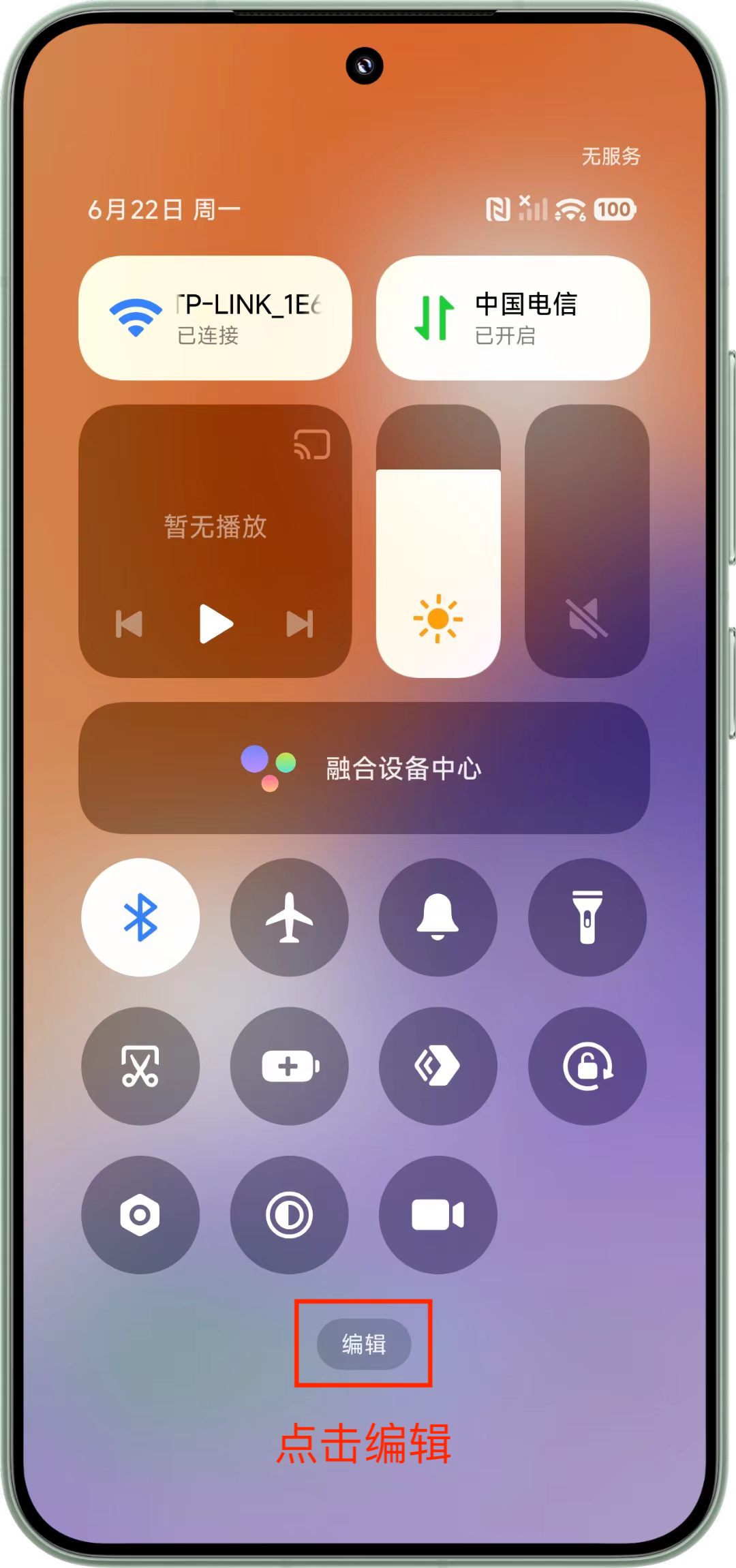
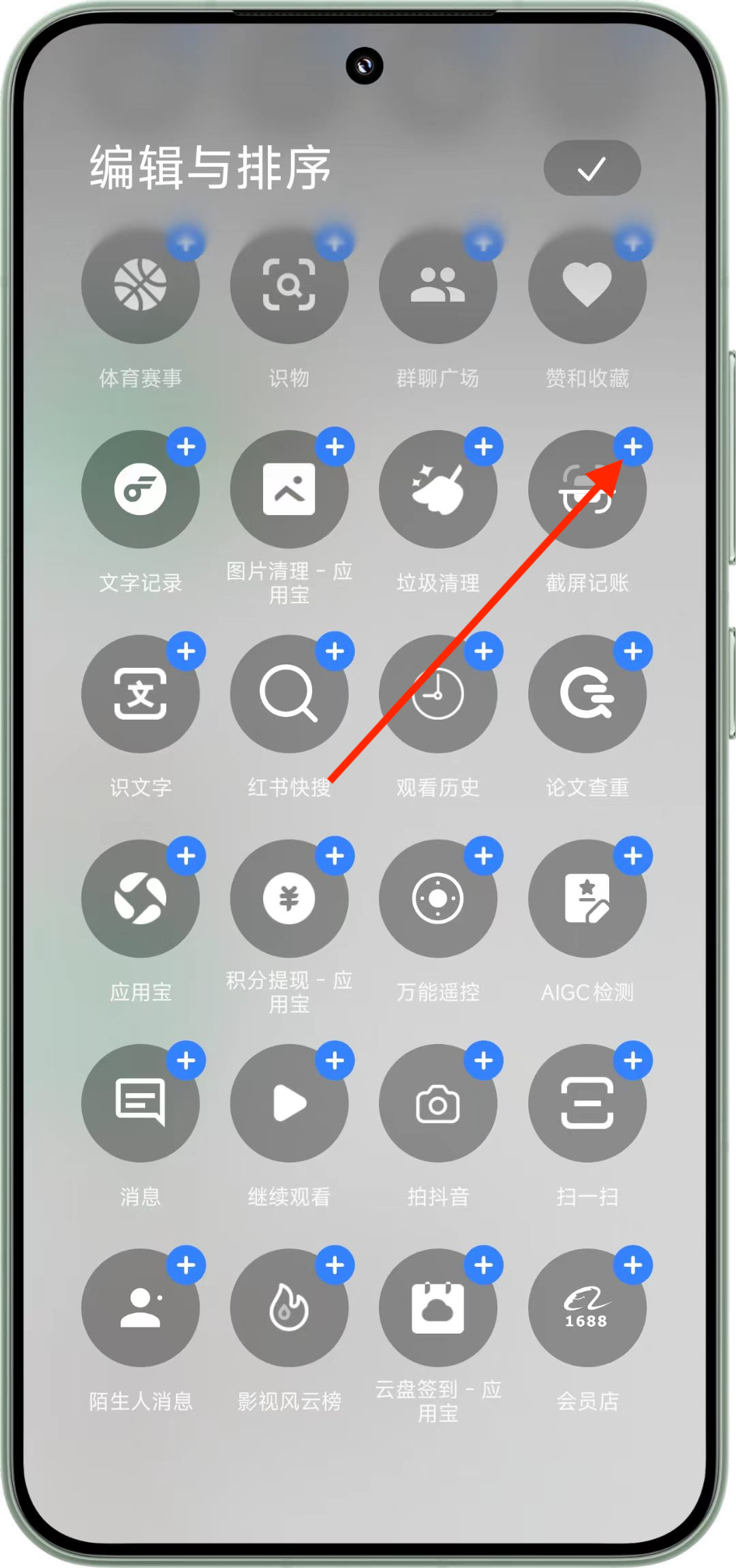
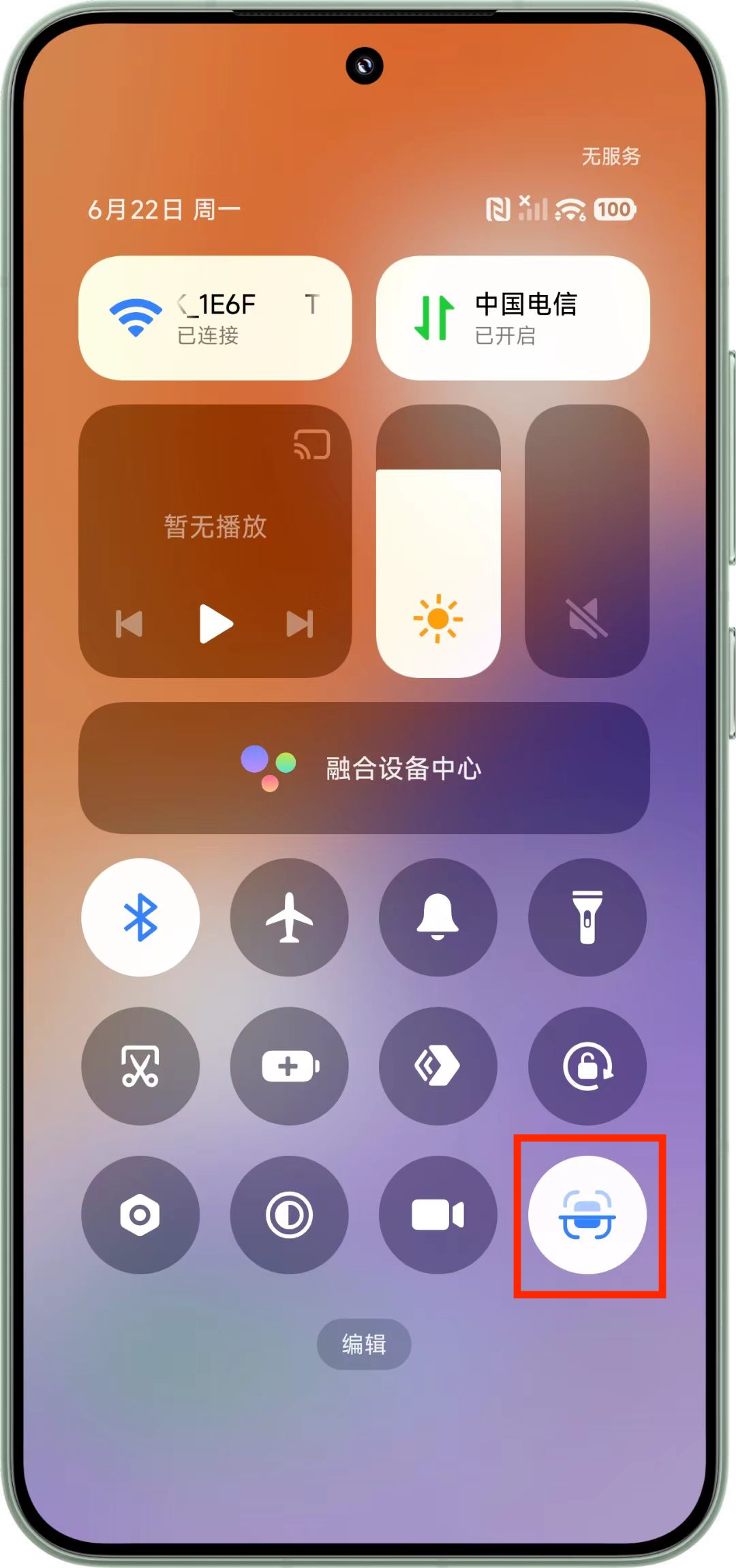
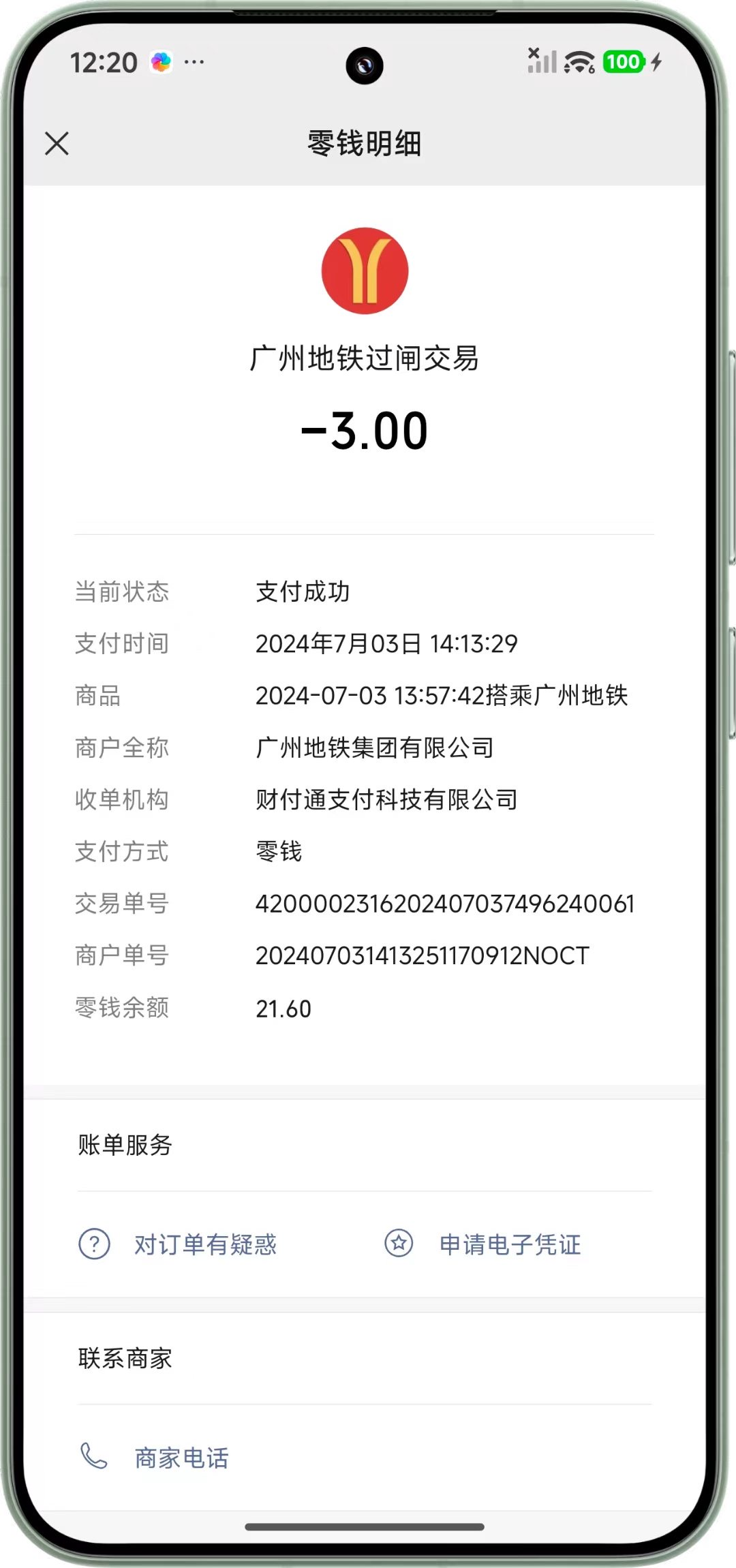
# III. Permission Notes
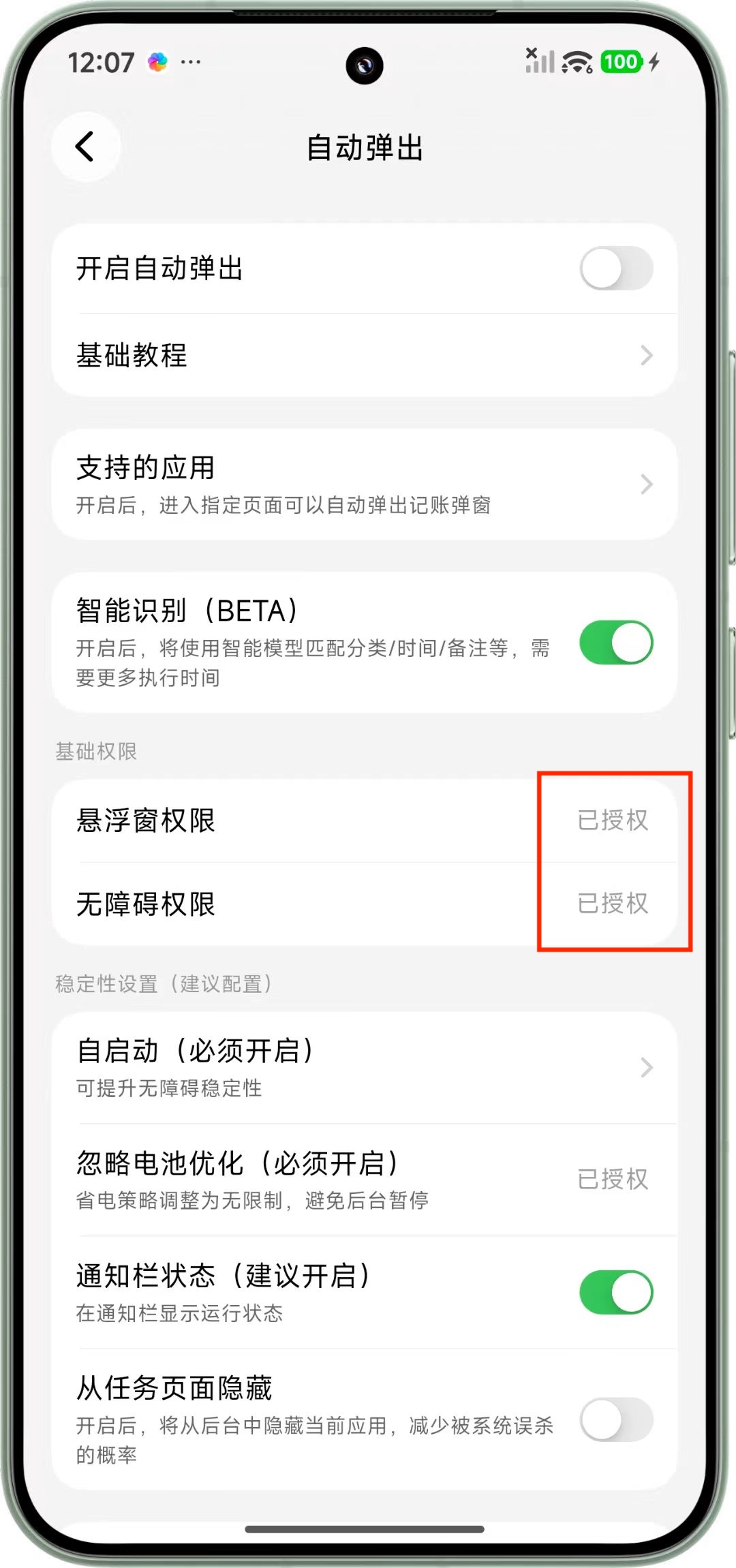
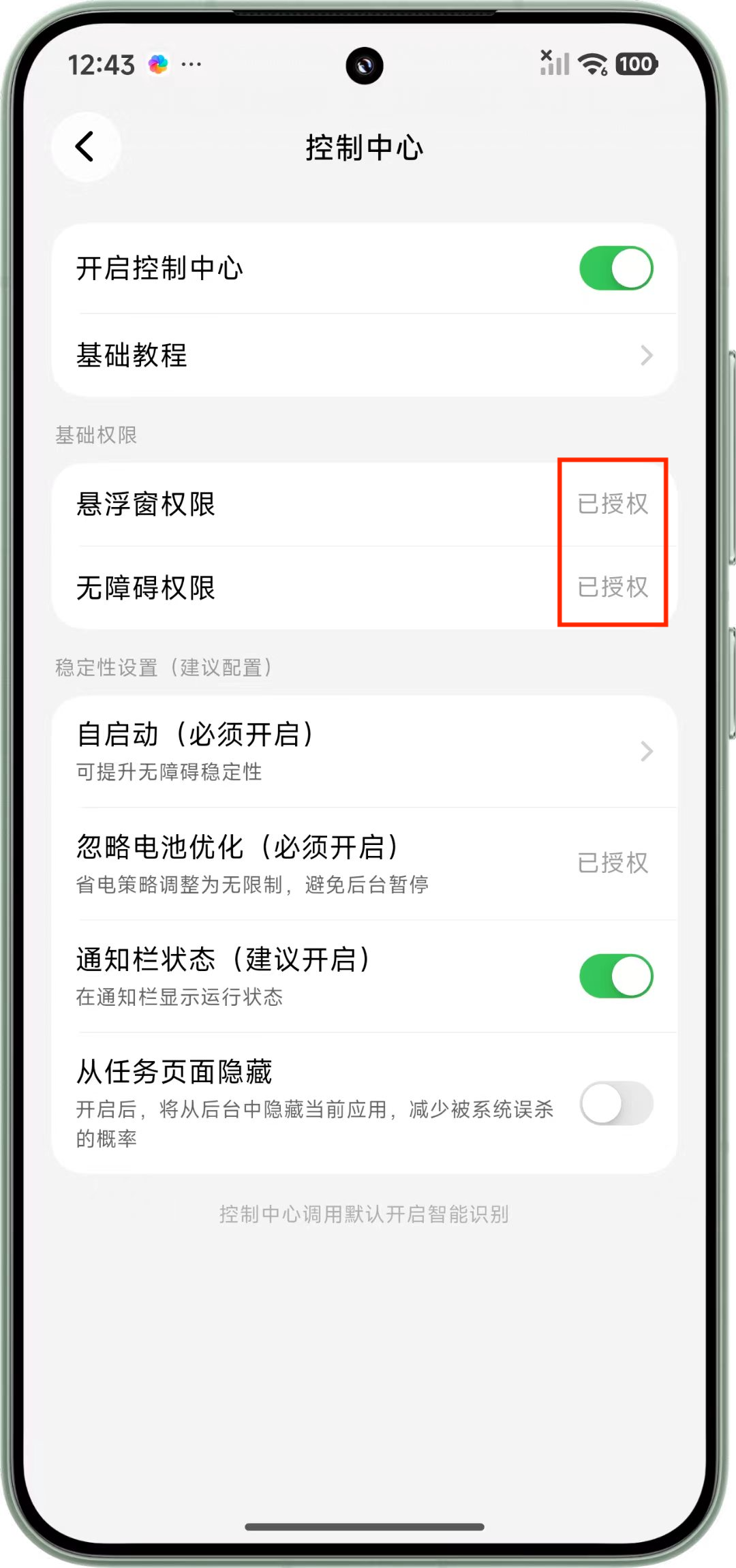
- Accessibility permission: used to read the payment page structure and key information. This is the core permission for automatic accounting.
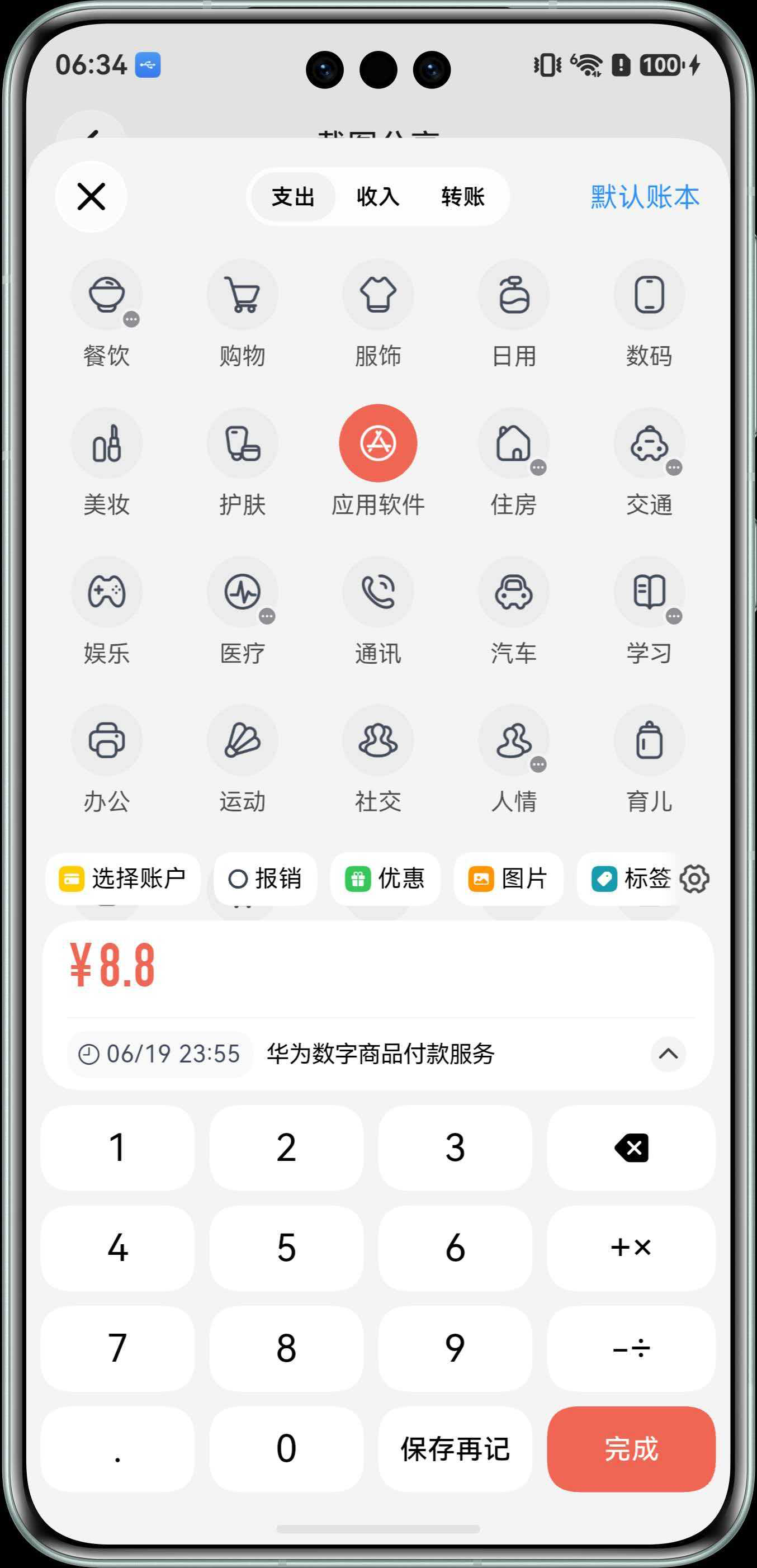
- Floating Window permission: used to show the accounting popup above payment apps, making it easier to confirm and save.
# IV. FAQ
# 1) Smart Accounting does not respond
Check the following:
- Accessibility is disabled: re-enable the iCost Accessibility service.
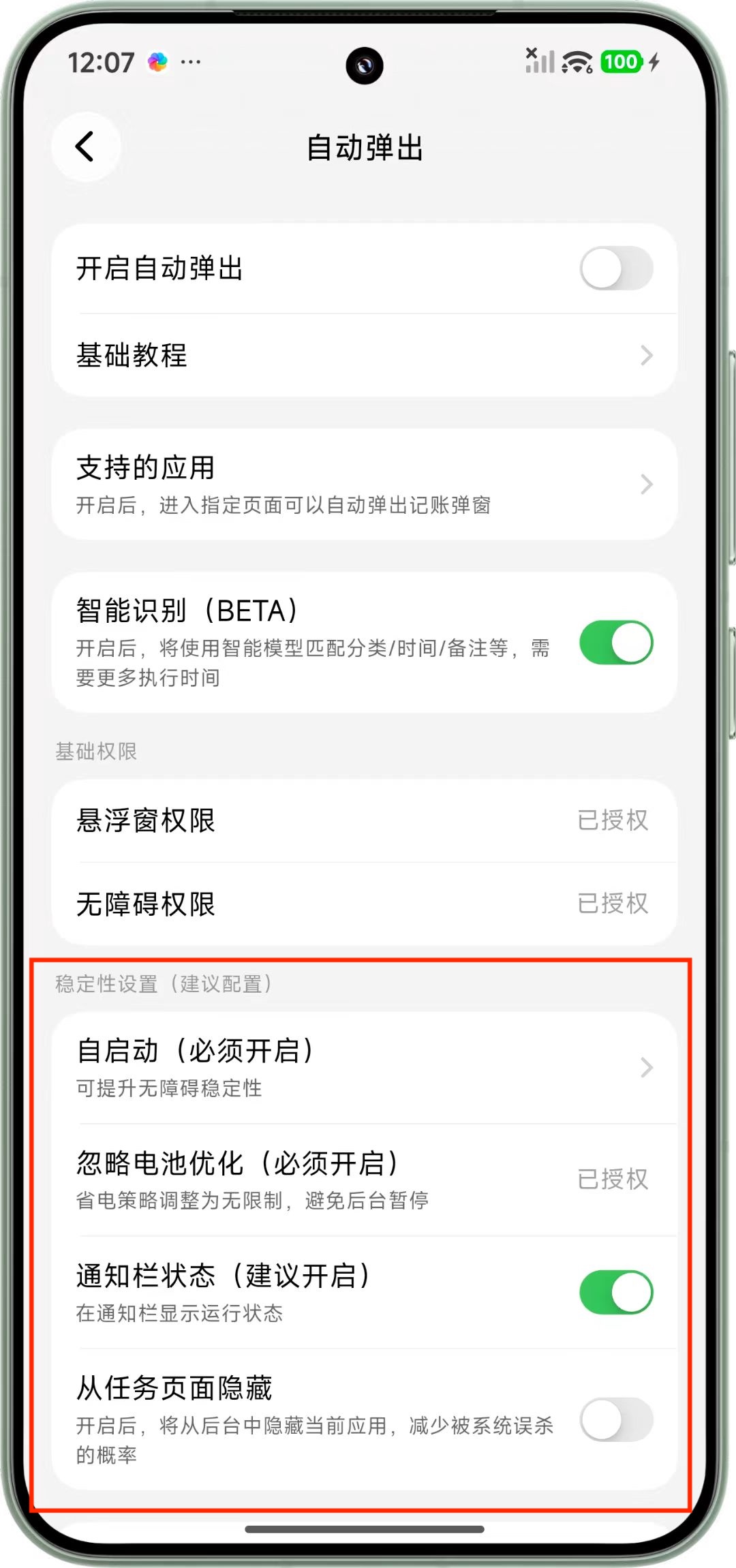
- Permissions are incomplete: check whether Accessibility, Floating Window, Notifications, and Ignore Battery Optimization are all enabled.
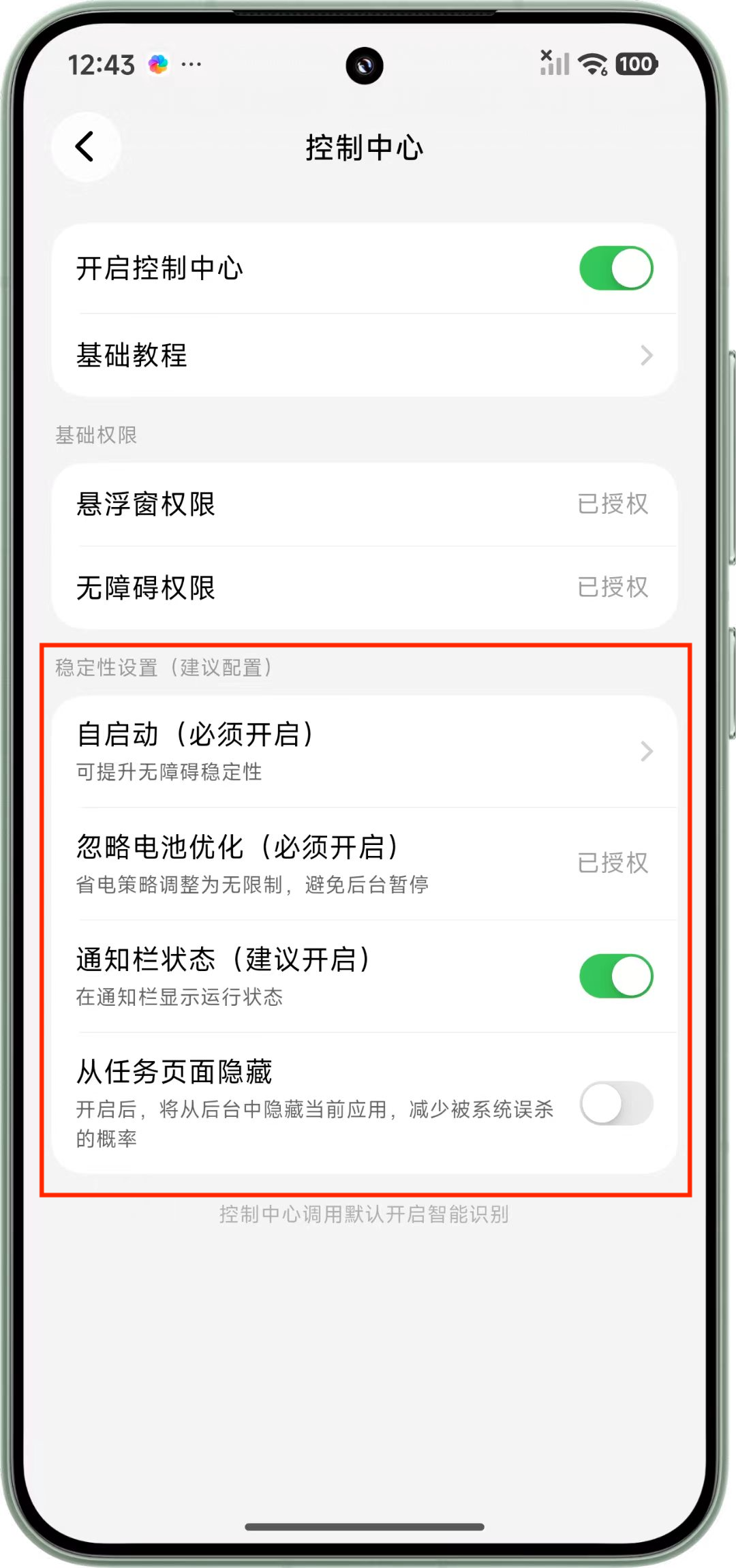
- Background running is restricted by the system: enable both Auto-start and Ignore Battery Optimization.
- Payment app version is outdated: update WeChat, Alipay, or Cloud QuickPass to the latest version.
# 2) Why "Ignore Battery Optimization" must be enabled
Some Android devices may pause Accessibility under background power-saving policies. Even if the iCost process is still running, automatic recognition may stop working. Enabling "Ignore Battery Optimization" can significantly reduce this issue.
# 3) No popup appears immediately after payment
Some systems or payment apps restrict floating windows in payment scenarios. A common symptom is that the popup only appears after you leave the payment page, or even after you return to the background.
You can try searching for "Payment Protection" or "Payment Security Check" in system settings, then disable the corresponding restriction if needed.
Note: These protections are provided by the system. Please adjust them carefully based on your personal security needs.
# 4) Accessibility page shows "service malfunction/unable to run"
First turn off iCost Accessibility authorization, then enable it again. If the issue persists, restart your phone and configure it again.
# 5) "Restricted settings" appears when enabling Accessibility
Some devices restrict Accessibility configuration for apps installed from sources other than the official app store. You can try:
- Install iCost from your phone's official app store, then configure it again.
- Or go to system Settings - App Management - iCost, and remove restricted settings. The exact path may vary by device model.